
Asset Component Features
Also explained in the overview video:
Adding the component
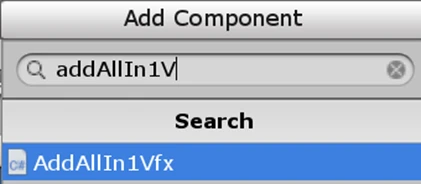
Section titled “Adding the component”You can add it by pressing Add Component and searching for AddAllIn1Vfx:
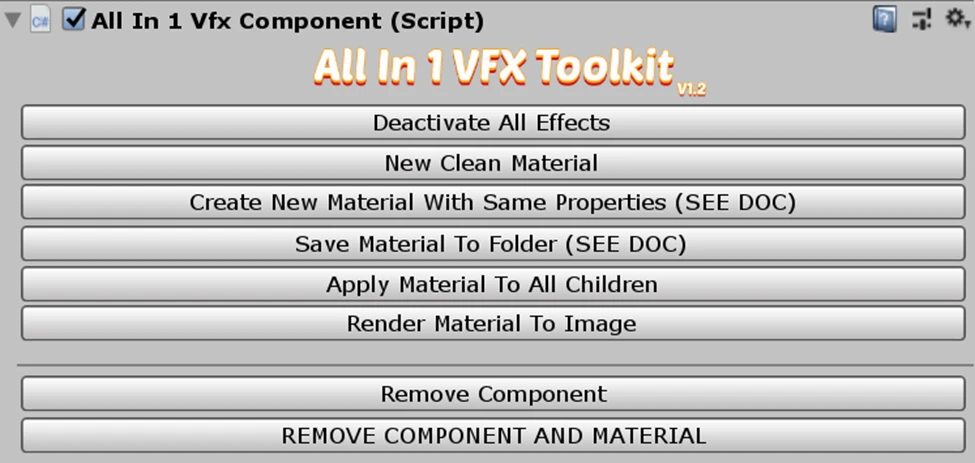
Once added the component will look like this:
What the buttons do
Section titled “What the buttons do”- Deactivate All Effects: It will deactivate all effects but won’t modify any properties. So if you activate an effect again you will obtain your previous visual results.
- New Clean Material: It will create a new instance of the AllIn1VfxShader material and assign it to the Renderer.
- Create New Material With Same Properties: It will create a new instance of the AllIn1VfxShader material with the same properties of the previous one. This is useful when you want to create a variant of the current material.
- Save Material to Folder: Creates a Material asset with the name of the current GameObject and by default saves it in the following path: “Assets/Plugins/AllIn1Assets/AllIn1VfxToolkit/MaterialSaves” but the path can be changed in the Asset Window. This can be used to assign the same Material to many different Renderers.
- Apply Material To All Children: Applies the material of the current selected object to all the objects under its hierarchy.
- Render Material To Image: Renders current Texture + Material to an image texture. You can read more about this in the Render Material To Image section.
- Add Particle System Helper: Adds the Particle System Helper component. This option is only available when a Particle System is present in the current Gameobject
- Remove Component: Removes the component without changing anything else
- Remove Component and Material: Removes the component from the GameObject and sets the Sprite Material back to the Sprite/Default one.