
How to Enable/Disable Effects at Runtime
There are 2 ways of achieving this.
Option 1: Change the property values
Section titled “Option 1: Change the property values”Use this one. Every effect has a value combination that makes it look deactivated, usually its amount or blend property at 0, though it varies by effect. So the clean way is to enable in the editor every effect the material will ever use, and then change the property values, either by animating them or from a script.
mat.SetFloat("_FadeAmount", -0.1f); // effect enabled, nothing visiblemat.SetFloat("_FadeAmount", 1f); // fully dissolvedNothing recompiles, nothing hitches, and the material keeps rendering with the same shader variant all the way through. See Scripting for a worked example.
Option 2: Toggle the shader keywords (not recommended)
Section titled “Option 2: Toggle the shader keywords (not recommended)”This other way is less efficient and messier, and it can make materials invisible or turn objects pink in the final build.
Here is why. Each set of enabled effects is a separate compiled shader variant, and Unity only builds the variants your project actually uses. Switching any keyword, on or off, moves the material onto a different variant, and if nothing in your project uses that particular set, it was never built. The editor compiles variants on demand, so this always looks correct in play mode and only shows up on the device.
Material mat = GetComponent<Renderer>().material;
mat.EnableKeyword("GLOW_ON");mat.DisableKeyword("GLOW_ON");
Making sure the variants exist
Section titled “Making sure the variants exist”If you go this route, every combination you can end up on has to be in the build:
- Keep a material in your project for each combination you will switch to. Unity builds the variants its materials use, so a saved material with that exact set of effects guarantees the variant ships. If an effect disappears or an object turns pink in a build, this is the first thing to check: work out which combination it landed on, and make sure some material in the project uses it.
- Include the variants explicitly, through a Shader Variant Collection added to the preloaded shaders in Graphics settings, or whatever variant inclusion your project already has.
Then test on the target platform. Neither of these is something to reach for casually, so unless you understand how Unity strips shader variants and you have a reason option 1 will not work, stay on option 1.
Finding the keyword names
Section titled “Finding the keyword names”Every effect keyword is listed on Effects and Properties Breakdown, including the sub-toggles and the Advanced Configuration options, which are only reachable by keyword since they are not material properties. You can also read one off the Material Inspector by hovering the effect:
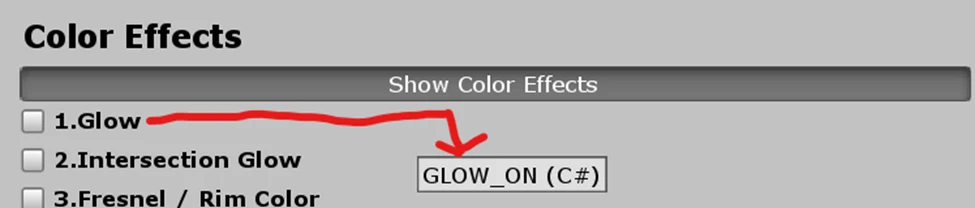
Note that the three shapes have numbered keywords rather than a placeholder: Shape 1’s contrast is SHAPE1CONTRAST_ON, Shape 2’s is SHAPE2CONTRAST_ON, and so on.
Most effect keywords are local keywords, so they are set per material with material.EnableKeyword. Shader.EnableKeyword does not reach those.