Ui Toolkit
Since version 1.3, the asset includes a UiToolkitSpringComponent. This component serves as a proof of concept, demonstrating a potential setup for easily adding springs to your UiToolkit VisualElements.
Import the package
Section titled “Import the package”Before moving on import the Unity Package that contains the 2 scripts:

The recommended approach
Section titled “The recommended approach”UiToolkit uses a different paradigm, distinct from the classic Transforms and GameObjects Unity employs elsewhere. As a result, UiToolkit relies more heavily on code and custom logic that will vary from project to project.
A recommended approach is to create a script where you:
- Fetch all VisualElements of your UIDocument
- Create base springs like SpringVector3 (found in Assets\Plugins\AllIn1Assets\AllIn1SpringsToolkit\Scripts\BaseSprings)
- Use these springs to drive your animations
The setup included in the asset
Section titled “The setup included in the asset”However, if this approach seems complex or you prefer a quicker method to add springs to your VisualElements, you can utilize the setup included in the asset. This setup requires two key elements:
- VisualElementProvider.cs: This component must be added to the GameObject that has the UIDocument. The UIDocument should contain the Visual Tree Asset that includes the VisualElement you want to add a spring to.
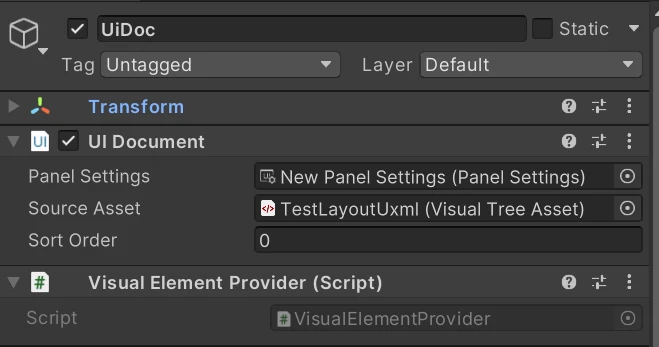
- UiToolkitSpringComponent.cs: This component handles the logic for spring animations. It performs the following actions:
- Creates an empty GameObject as a child of the object it’s attached to.
- Names the new GameObject “{UiToolkitSpring-$VisualElementName}”.
- Adds a TransformSpringComponent to this new object.
- Automatically uses the TransformSpringComponent to drive the VisualElement spring animations without further setup.

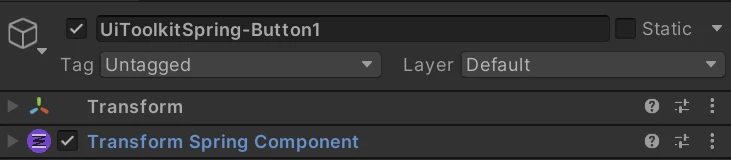
In this example:
- The UiToolkitSpringComponent references the VisualElementProvider.
- The VisualElementProvider is set on the object with the UIDocument.
- The UIDocument has access to “Button1”, which is the VisualElement we want to add a spring to.
- A new GameObject named “UiToolkitSpring-Button1” will be created.
Driving the spring from code
Section titled “Driving the spring from code”You can then access the spring through UiToolkitSpringComponent.transformSpringComponent. Here are some example operations:
// Nudges to scale, position and rotationtransformSpringComponent.AddVelocityScale(f1 * Vector3.one);transformSpringComponent.AddVelocityPosition(f2 * Vector3.right);transformSpringComponent.AddVelocityRotation(f3 * Vector3.forward);You’ll then get something like: