
Asset Window
Tools → AllIn1 → Text Shader Window opens the toolkit’s window: where things are saved, an image editor, and a set of texture makers for the effects that take a texture. It is not available in play mode.
Save Paths
Section titled “Save Paths”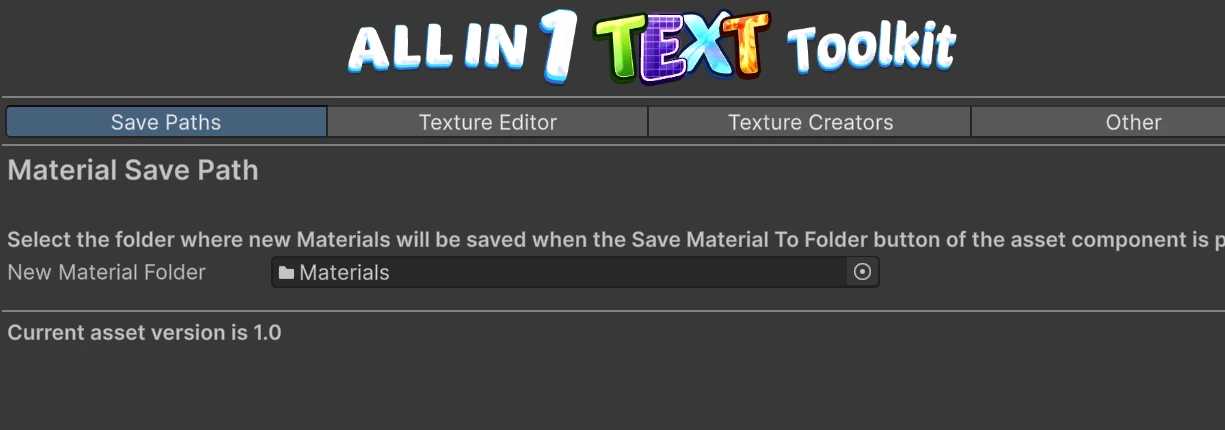
| Setting | What it is |
|---|---|
| Material Save Path | The folder Save Material To Folder saves materials into. By default Assets/AllIn1Exports/AllIn1TextShader/Materials |
Generated textures go under Assets/AllIn1Exports/AllIn1TextShader/ by default too, in a
folder per kind, which each texture maker below lets you change.
Texture Editor
Section titled “Texture Editor”A quick image editor. Pick an Image to Edit, then adjust Color Tint, Brightness, Contrast, Gamma, Exposure, Saturation and Hue, invert it, turn it greyscale, rotate or flip it, and save the result as a new PNG with Save Resulting Image as PNG file. The preview is limited to 256 pixels, but the image is saved at full resolution, scaled by Export Scale.
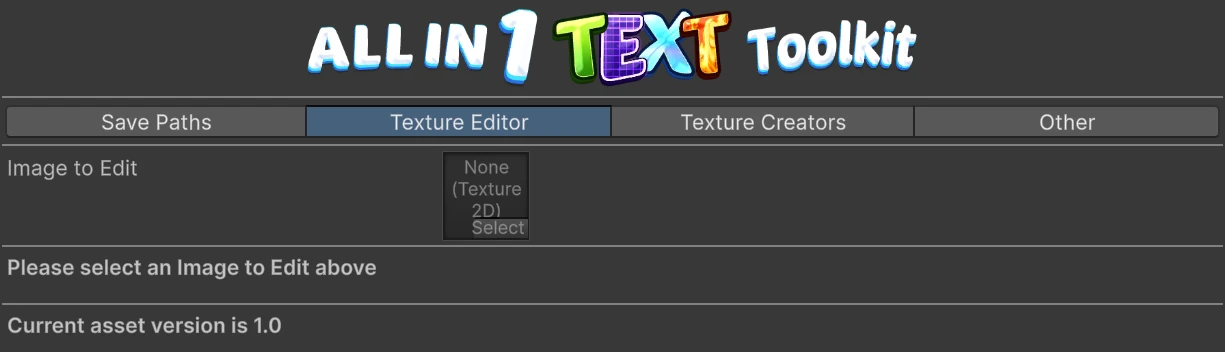
Useful for tinting or reshaping a texture for Overlay Texture, Fade or Shine Mask without leaving Unity.
Texture Creators
Section titled “Texture Creators”Each one saves a new PNG, asking where with a save dialog.
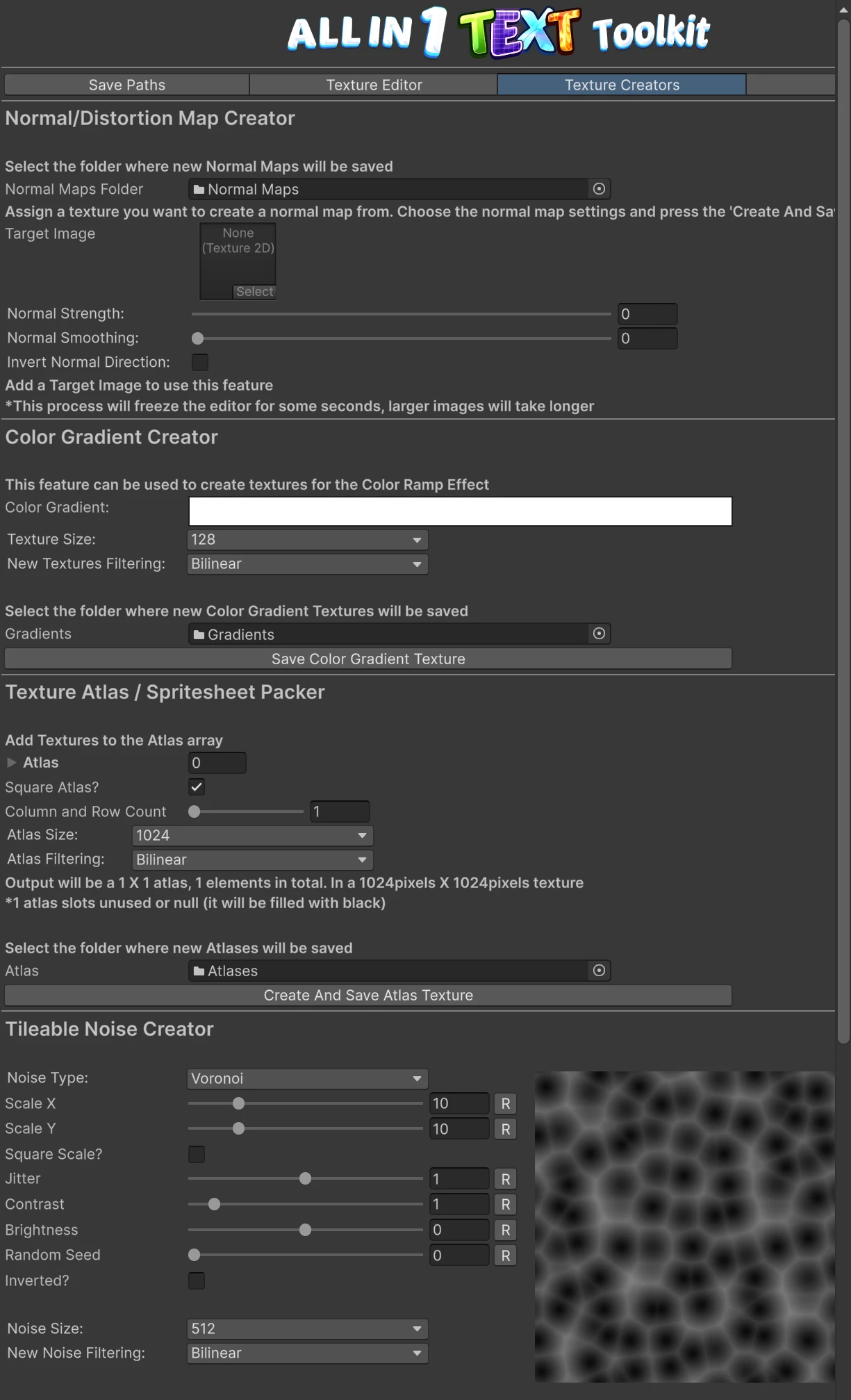
| Creator | Makes | Use it for |
|---|---|---|
| Normal/Distortion Map Creator | A normal map from any image | Bevel’s Normal Map |
| Color Gradient Creator | A gradient strip | Color Ramp, or Color Gradient |
| Texture Atlas / Spritesheet Packer | Several images packed into one grid | Combining textures into one |
| Tileable Noise Creator | A tiling noise: Fractal, Perlin, Billow, Voronoi, Water, Cellular and more | Distortion, Fade, Overlay Texture, Color Gradient’s noise |
| RGBA Channel Packer | Four greyscale images packed into one texture’s four channels | Combining masks into one texture |
The Normal Map creator freezes the editor for a few seconds while it works, longer for big images, and turns on Read/Write on the image you give it.
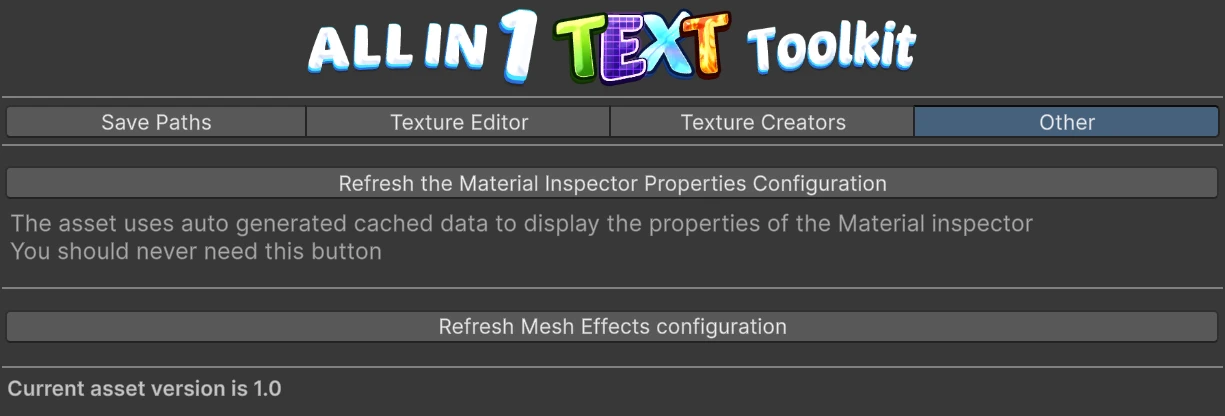
| Button | What it does |
|---|---|
| Refresh the Material Inspector Properties Configuration | Rebuilds the cached data the material inspector is drawn from. You should never need it, but it is the first thing to try if the material inspector looks wrong after an update |
| Refresh Mesh Effects configuration | Rebuilds every typewriter preset from the current list of motion effects, keeping their values. Use it if presets look wrong after an update |
Starting over
Section titled “Starting over”Tools → AllIn1 → Configuration → Reset All Plugin Configuration puts every All In 1 asset back to its just imported state: save paths go back to their defaults and the first time setup runs again. Materials, textures and everything else you made are kept.