
Effects and Properties
The material has 30 effects in five groups, listed here in the order the material inspector shows them. Turn an effect on with its toggle and its properties appear under it. Any of them can be combined, and an effect that is off costs nothing.
Each effect’s toggle is numbered in the inspector, “1. Bevel” to “30. Distortion”, and hovering over it or over a property shows the name a script uses for it.
The top of the material
Section titled “The top of the material”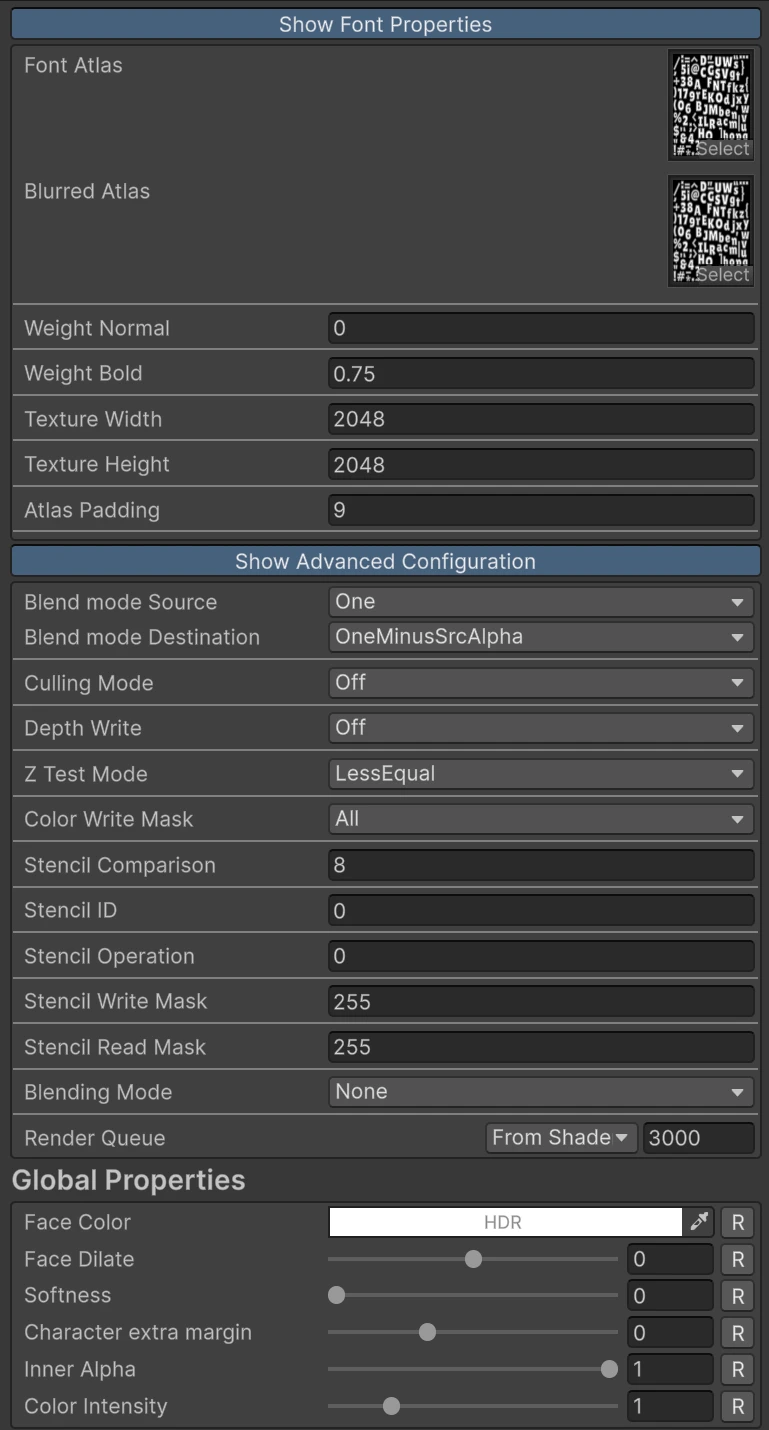
Show Font Properties opens the font’s atlas, the blurred copy of it that some effects read, and the font values the toolkit fills in for you. Leave these as they are; they follow the text’s font asset. See Fonts and Font Assets.
Show Advanced Configuration opens the render settings: blend modes, culling, depth, color mask, stencil and render queue, plus Blending Mode, which draws the whole text as None (normal), Multiply or Additive. The defaults suit almost every text.
Under Global Properties, the letters themselves:
| Property | What it does |
|---|---|
| Face Color | The letters’ color, multiplied with TextMeshPro’s own color and color tags. HDR, so it can feed bloom |
| Face Dilate | Thickens the letters above 0, thins them below |
| Softness | Blurs the letters’ edges |
| Character extra margin | Extra room around each letter for its effects. Raise it if an effect is cut off in a straight line |
| Inner Alpha | The opacity of the letters’ face. At 0 only the outlines, glows and shadows remain |
| Color Intensity | Multiplies the final color, outlines and glows included, to brighten it or push it into bloom |
Two kinds of distance
Section titled “Two kinds of distance”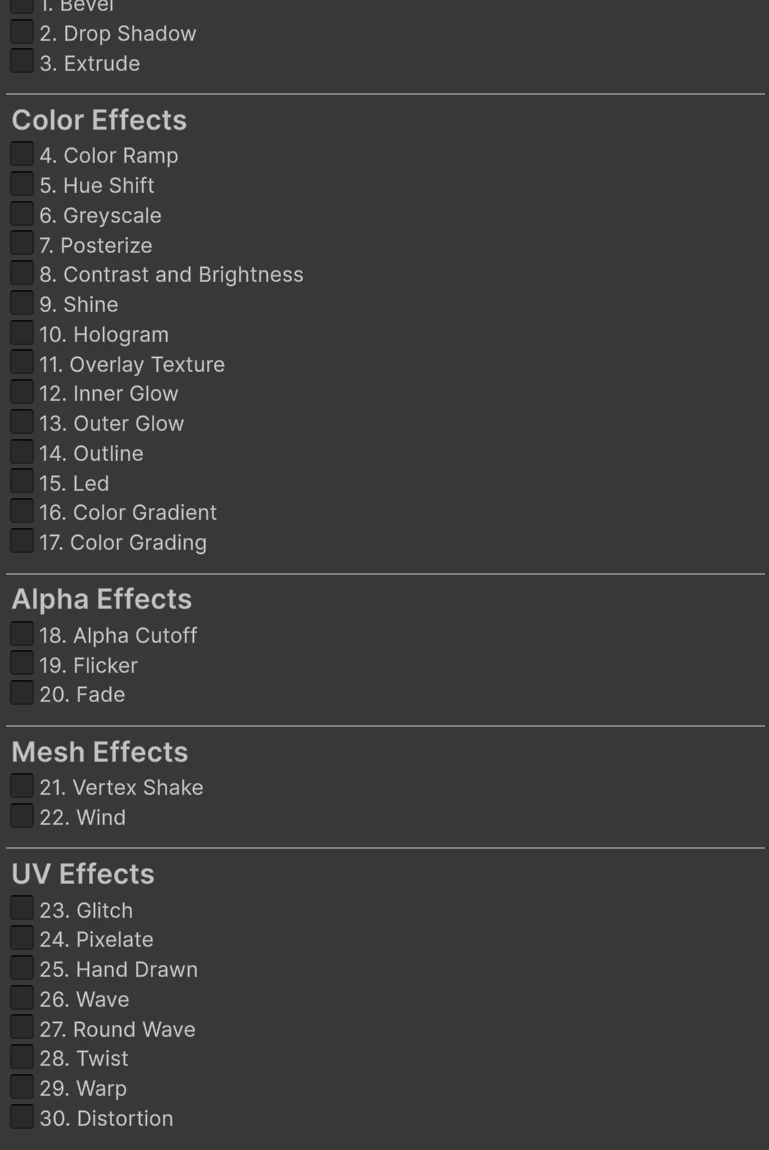
Some properties are measured in the font’s own distance field rather than in pixels, so an effect looks the same at any font size: Face Dilate, Outline Thickness, Glow Size and Shadows Size. In that unit, 1 is the full padding of the font atlas, the furthest distance from the letter the atlas stores. Going past it works, at a small cost that the inspector tells you about. Fonts and Font Assets explains both.
The shadow offsets and Extrude’s depth are measured in font atlas pixels instead, which also scale with the letter.
Whole text, or each letter
Section titled “Whole text, or each letter”Some effects lay one pattern over the whole text, so it runs continuously from letter to letter: Shine, Hologram, Overlay Texture, Color Gradient (in Rect scope), LEDs, Pixelate, Round Wave, Twist and Fade. The others work inside each letter on its own.
Most animated effects also give every letter its own time offset, so the letters move out of step with each other instead of in unison: Overlay Texture, Wave, Warp, Glitch, Hand Drawn, Distortion, Flicker, Wind and the noise of Color Gradient.
Lighting
Section titled “Lighting”
Gives each letter a raised edge lit from one direction, with a lit side and a shadowed side. It can add a normal map, a specular highlight and a reflection cubemap, and it can take its light from a scene object so every text shares one light. It has its own page: Bevel, Extrude and Lighting.
Drop Shadow
Section titled “Drop Shadow”
A copy of the letters behind them, offset and softened. Two shadows can be stacked.
| Property | What it does |
|---|---|
| Shadow Color | The shadow’s color. Its alpha is the shadow’s opacity |
| Shadows Size | At 0.5 the shadow is the letter’s own size. Higher grows it, lower shrinks it |
| Offset X, Offset Y | How far the shadow moves, in font atlas pixels, from -40 to 40. It scales with the letter |
| Smoothness | 0 is a hard shadow, higher values blur it |
| Drop Shadow (02) | A second shadow with the same five properties |
The first shadow draws over the second, and the text draws over both. Shadows keep their own color: no color effect and no bevel ever touches them. For a dark halo all around the letters, use a shadow with both offsets at 0.
Each shadow ends with a note when its size reaches past the font’s padding, and the note says the largest size that stays within it.
Extrude
Section titled “Extrude”
Gives the letters depth: a lit side wall behind each letter, as if it were cut from a block. The sides always draw behind every letter, never over one. It has its own page: Bevel, Extrude and Lighting.
Color Effects
Section titled “Color Effects”The adjustments (Hue Shift, Greyscale, Posterize, Contrast and Brightness, Color Grading and Color Ramp in its After Effects stage) run last, on the finished text. So a Hue Shift also turns the colors of the outlines, the glows and the bevel’s light and shadow, which keeps a whole look consistent while you change its color.
Color Ramp
Section titled “Color Ramp”
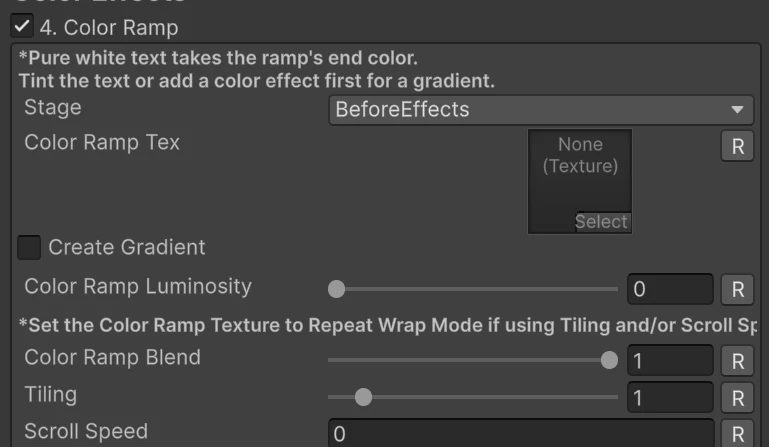
Recolors the text by brightness through a gradient: dark parts take the left end of the gradient, bright parts the right end.
| Property | What it does |
|---|---|
| Stage | Before Effects recolors the face first, and the other color effects build on it. After Effects recolors the finished text, outlines, bevel and glows included |
| Color Ramp Tex | The gradient texture. Tick Create Gradient to draw one in place, then Save Texture to keep it |
| Color Ramp Luminosity | Brightens the text before the lookup, which moves it along the gradient |
| Color Ramp Blend | 0 keeps the original color, 1 is the full ramp |
| Tiling | Repeats the gradient across the brightness range |
| Scroll Speed | Scrolls through the gradient over time. 0 holds it still |
Tiling and Scroll Speed need the ramp texture’s Wrap Mode set to Repeat, as the inspector reminds you.
Hue Shift
Section titled “Hue Shift”
| Property | What it does |
|---|---|
| Hue Shift | Turns every hue around the color wheel, in degrees |
| Saturation | 1 keeps it, 0 is grey, above 1 is more vivid |
| Brightness | 1 keeps it |
Greyscale
Section titled “Greyscale”
| Property | What it does |
|---|---|
| Luminosity | Brightens or darkens the grey |
| Greyscale Tint | Tints the grey, for sepia or a single color |
| Blend | How much of the original color is replaced |
Posterize
Section titled “Posterize”
Reduces the text to a few flat color steps.
| Property | What it does |
|---|---|
| Number of Colors | Steps per color channel |
| Posterize Gamma | Moves the steps toward the dark or the light end |
Contrast and Brightness
Section titled “Contrast and Brightness”
| Property | What it does |
|---|---|
| Contrast | 1 keeps it, 0 is flat grey, higher values push colors apart |
| Brightness | Added to every color, from -1 to 1 |

A band of light that sweeps across the whole text.
| Property | What it does |
|---|---|
| Shine Color | The light’s color. Its alpha scales the shine |
| Shine Speed | How fast the band moves. A negative value sweeps the other way, and 0 holds it at Shine Location |
| Path Length | How far the band travels before it starts over. Above 1 it spends part of the loop off the text, which leaves a pause between sweeps |
| Shine Location | Where the band sits along its path |
| Rotate Angle(radians) | The sweep’s direction, in radians |
| Shine Width | How wide the band is |
| Shine Glow | How bright the band is |
| Shine Mask | A texture laid over the text: its alpha limits where the shine shows |
Hologram
Section titled “Hologram”
Scan lines and a wider accent band scrolling across the whole text, which turns tinted and see-through between the lines.
| Property | What it does |
|---|---|
| Hologram Color | The tint and the color of the lines. HDR, so it can glow. Its alpha scales the whole effect |
| Hologram Tint | How far the text is tinted toward Hologram Color |
| Hologram Rotation | The lines’ direction, in degrees |
| Hologram Base Alpha | The text’s opacity between the lines |
| Hologram Lines Per Rect Height | How many lines fit in the text’s height |
| Hologram Scroll Speed (lines/s) | How fast the lines scroll |
| Hologram Line Width | How thick each line is |
| Hologram Line Smoothness | How soft each line’s edges are |
| Hologram Line Glow | How bright the lines are |
| Hologram Accent Frequency | How many accent bands there are |
| Hologram Accent Speed | How fast they move |
| Hologram Accent Width | How wide they are |
| Hologram Accent Glow | How bright they are |
Overlay Texture
Section titled “Overlay Texture”
A texture laid over the whole text and multiplied with it, scrolling by default: stone, metal, scales, a starfield.
| Property | What it does |
|---|---|
| Overlay Texture | The texture, with tiling and offset |
| Speed X Axis, Speed Y Axis | Scroll speed on each axis. Set both to 0 for a still pattern |
| Overlay Color | Tints the texture |
| Overlay Glow | Brightens the texture |
| Overlay Blend | How much of the texture is applied |
While it scrolls, each letter starts at its own point in the scroll.
Inner Glow
Section titled “Inner Glow”
A glow inside the letters, from their edge inward.
| Property | What it does |
|---|---|
| Blending | Additive brightens, Multiply darkens toward the glow color, Replace paints it on |
| Glow Color | HDR, so it can feed bloom |
| Glow Size | How far in the glow reaches |
| Smoothness | How much of that reach fades out |
| Attenuation | Fades the whole glow |
It starts at the inner edge of the widest inside outline, or at the letter’s edge when there is none, so it never draws under an outline.
Outer Glow
Section titled “Outer Glow”
A glow around the letters.
| Property | What it does |
|---|---|
| Glow Color | HDR, so it can feed bloom |
| Glow Size | How far out the glow reaches |
| Smoothness | How much of that reach fades out |
| Attenuation | Fades the whole glow |
It starts at the outer edge of the widest outside outline, or at the letter’s edge when there is none. It always adds light; for a dark halo, use a Drop Shadow with both offsets at 0.
Outline
Section titled “Outline”
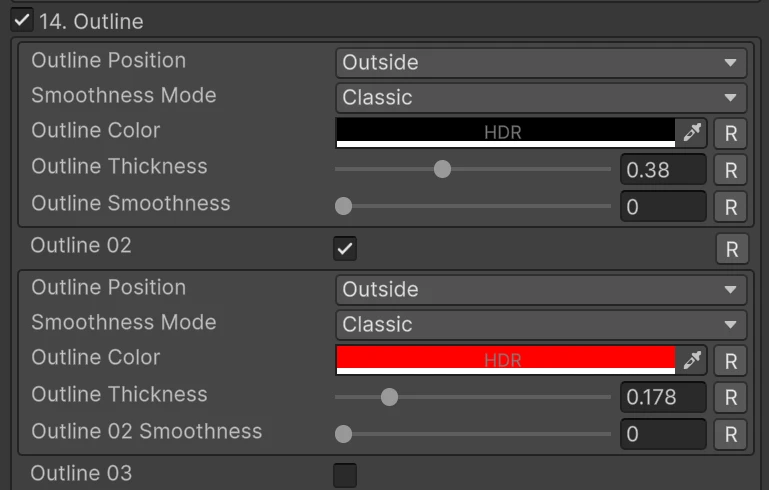
Up to three outlines, each inside or outside the letter.
| Property | What it does |
|---|---|
| Outline Position | Outside grows the outline out from the letter, Inside draws it within the letter |
| Smoothness Mode | Classic follows the letter’s exact shape. Smooth follows a blurred copy of it, for rounder corners |
| Outline Color | HDR, so it can feed bloom |
| Outline Thickness | How wide the outline is |
| Outline Smoothness | How soft its edge is |
| Outline 02 | A second outline with the same properties |
| Outline 03 | A third, shown once Outline 02 is on |
Each outline’s thickness is measured from the letter’s edge, and Outline 02 draws over Outline 01, Outline 03 over both. For rings around rings, give Outline 01 the largest thickness and each next outline a smaller one.
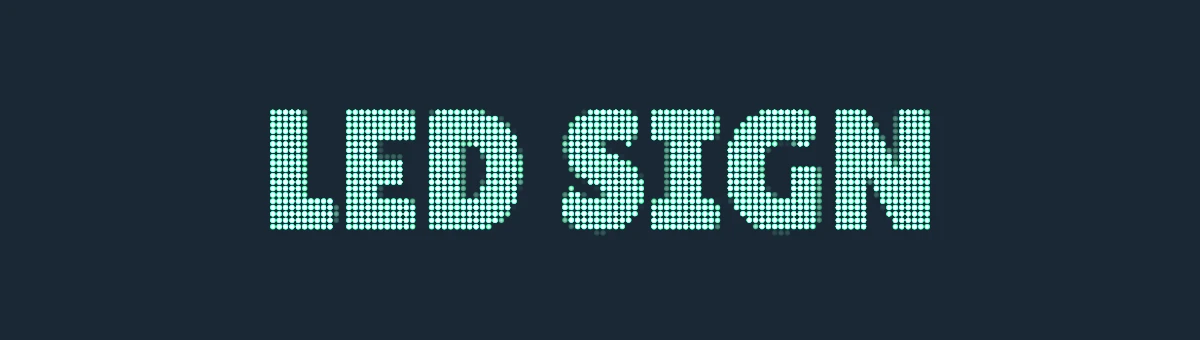
Draws the text as a dot matrix display: each dot is fully lit or off, and the letters are made of the lit dots.
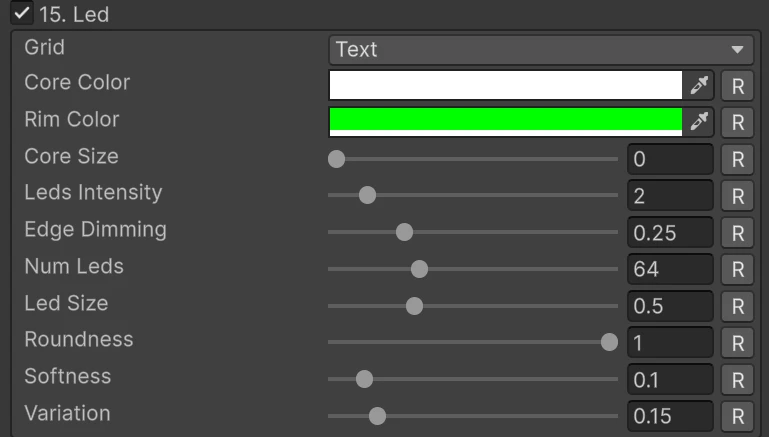
| Property | What it does |
|---|---|
| Grid | Text lays the dots over the text itself. Panel takes them from an LED Panel, see below |
| Core Color | The color at each dot’s center |
| Rim Color | The color at its edge |
| Core Size | How much of the dot the core covers |
| Leds Intensity | How bright the dots are, for bloom |
| Edge Dimming | How wide the band along the letters’ edges is where dots light partly, the way real displays smooth their fonts |
| Num Leds | Dots across the text’s width. Text grid only |
| Led Size | Each dot’s size within its cell. Text grid only |
| Roundness | 1 is round, 0 is square. Text grid only |
| Softness | How soft each dot’s edge is. Text grid only |
| Variation | How much the dots’ brightness varies at random. Text grid only |
The dots are tinted by the text’s own color, so TextMeshPro color tags still color them. Outlines, the bevel and drop shadows follow the smooth letter shape around the dots.
LED Panel
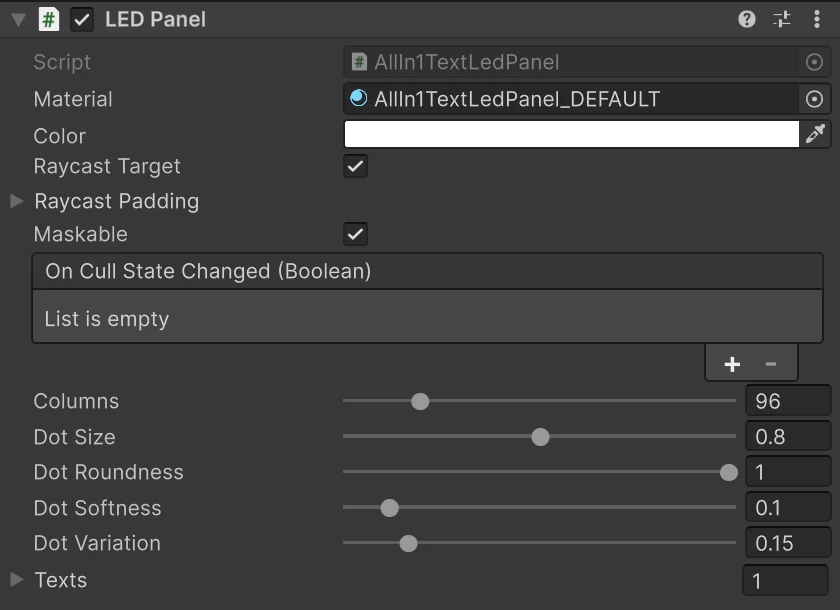
Section titled “LED Panel”The text only draws its lit dots, since unlit ones would show as boxes around each letter. For a full display with its unlit dots and background, add an LED Panel (Add Component → AllIn1TextShader → LED Panel) to a UI object behind the text:
- Add the LED Panel to a UI object and size its rect to the display.
- Add each text to its Texts list.
- Set those texts’ Led Grid to Panel.
- Put the texts below the panel in the Hierarchy, so they draw after it.
| Property | What it does |
|---|---|
| Columns | Dots across the panel. The cells are square, so the rows follow from its height |
| Dot Size, Dot Roundness, Dot Softness, Dot Variation | The dot shape, for the panel and every text on it |
| Texts | The texts lit on this panel |
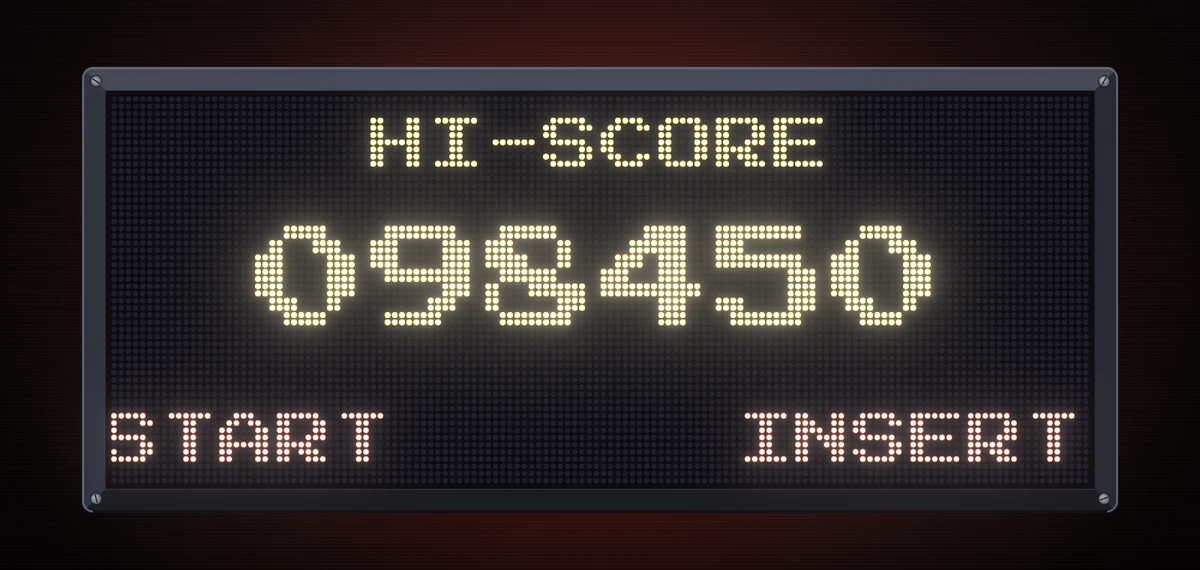
The panel’s own material sets the background and the unlit dots’ colors. Because the grid belongs to the panel, a text moving across it lights dot by dot like a marquee, and dots outside the panel stay off, so the panel also crops the text.
Color Gradient
Section titled “Color Gradient”
A gradient across the whole text, or across each letter.
| Property | What it does |
|---|---|
| Scope | Rect spreads one gradient over the whole text. Character repeats it in every letter |
| Blending Mode | Additive, Multiply or Replace |
| Blend | How much of the gradient is applied |
| Gradient | The gradient texture. Tick Create Gradient to draw one in place, then Save Texture to keep it |
| Gradient Origin | Where the gradient starts |
| Gradient Size | How long it is. Shorter is a harder transition |
| Angle | Its direction, in degrees |
| Gradient Speed | Scrolls it over time, looping. At 0 it holds still |
| Use Noise? | Picks the gradient’s color from a noise texture instead of from position |
| Noise Texture, X Speed, Y Speed | The noise and how fast it scrolls |
| Cutoff, Smoothness | Shape the noise into blotches with soft or hard edges |
In Rect scope the gradient reads where the letters actually are, so a letter moved by an animation or a warp moves through the gradient. A still gradient keeps its end colors past the text’s edges; only a scrolling one wraps around.
Color Grading
Section titled “Color Grading”
Tints the dark, middle and light parts of the text separately.
| Property | What it does |
|---|---|
| Light Color Tint | Multiplies the light parts |
| Mid Tone Color Tint | Multiplies the middle |
| Dark/Shadow Color Tint | Multiplies the dark parts |
| Mid Point | Where the middle sits on the brightness range |
The three tints are HDR, so they can also brighten.
Alpha Effects
Section titled “Alpha Effects”Alpha Cutoff
Section titled “Alpha Cutoff”| Property | What it does |
|---|---|
| Cutoff Value | Pixels less opaque than this are dropped instead of blended |
It runs last, after every other effect.
Flicker
Section titled “Flicker”The text blinks off now and then, like a failing light. Each letter keeps its own timing.
| Property | What it does |
|---|---|
| Flicker Percent | How much of the time the text is off |
| Flicker Frequency | How often it flickers |
| Flicker Alpha | The text’s opacity while it is off. 0 is fully gone |

Dissolves the text through a texture laid over the whole text, with an optional burning edge.
| Property | What it does |
|---|---|
| Fade Tex | The dissolve pattern. Dark parts go first |
| Fade Amount | 0 is the whole text, 1 is fully dissolved. Animate this one |
| Fade Power | Bends the pattern toward its dark or its light parts |
| Fade Transition | How soft the dissolving edge is |
| Use Fade Burn Color? | Adds a colored band along the edge |
| Fade Burn Color | The band’s color, HDR |
| Fade Burn Width | The band’s width |
This Fade is a shader effect driven by Fade Amount. The typewriter’s Fade is a different thing: it fades each letter in or out as it is revealed or hidden, see Motion Effects and Tags.
Mesh Effects
Section titled “Mesh Effects”These move the letters’ shapes on the graphics card, continuously and with no setup. They are not the typewriter’s motion effects, which play per letter with timing, see Motion Effects and Tags.
Vertex Shake
Section titled “Vertex Shake”Shakes every letter on each axis.
| Property | What it does |
|---|---|
| Speed | Shake speed per axis |
| Shake Mult | Multiplies all three speeds |
| Shake Max Displacement | How far each axis moves |
| Shake Blend | Scales the whole shake |

Bends the letters like grass in the wind. A wave travels along the line, gusts come and go, and each letter sways a little differently.
| Property | What it does |
|---|---|
| Bend Amount | How far the letters bend, in degrees |
| Lean | A steady lean, in degrees, that the sway moves around |
| Speed | How fast the sway is |
| Wave Frequency | How quickly the sway changes from letter to letter along the line |
| Randomness | How much each letter’s timing differs |
| Gust Strength | How much the gusts change the sway |
| Anchor | The point each letter bends around: Bottom, Center or Top |
Letters bend around their own axes, so Wind also works on text on a spline, warped or rotated text.
UV Effects
Section titled “UV Effects”These distort the letters by moving where each pixel reads the font from, rather than by moving the letters.
Glitch
Section titled “Glitch”
Shifts thin horizontal slices of each letter sideways at random.
| Property | What it does |
|---|---|
| Glitch Size | How finely each letter is cut. Higher values give more, thinner slices |
| Glitch Amount | How far they shift |
| Glitch Speed | How often they change |
Pixelate
Section titled “Pixelate”
Turns the text into square blocks, on one grid for the whole text.
| Property | What it does |
|---|---|
| Pixels Per Em | How many blocks fit in the font size. Lower is chunkier |
The blocks stay square and aligned on rotated, curved and warped text. Because the grid belongs to the text rather than to each letter, a letter moved by an animation snaps block by block as it travels. Pixelate does not combine with LEDs.
Hand Drawn
Section titled “Hand Drawn”
Makes the letters wobble in steps, like animation drawn frame by frame.
| Property | What it does |
|---|---|
| Num Steps | How many times per second the wobble changes |
| Hand Drawn Amount | How strong the wobble is |
| Hand Drawn Speed | How fast it moves |

A ripple inside each letter, spreading from a point.
| Property | What it does |
|---|---|
| Wave Amount | How many rings there are |
| Wave Speed | How fast they travel |
| Wave Strength | How far they push |
| Wave X Axis, Wave Y Axis | The ripple’s center within the letter, from 0 to 1 |
Round Wave
Section titled “Round Wave”
A ripple across the whole text, spreading from its center.
| Property | What it does |
|---|---|
| Wave Strength | How far it pushes |
| Wave Speed | How fast it travels |

Swirls the text around a point.
| Property | What it does |
|---|---|
| Twist Amount | How far the swirl turns |
| Twist Pos X Axis, Twist Pos Y Axis | Its center over the text, from 0 to 1 |
| Twist Radius | How far from the center it reaches |
| Stretch X, Stretch Y | Stretch the swirl’s area into an oval |

A smooth, wobbling distortion inside each letter.
| Property | What it does |
|---|---|
| Warp Strength | How far it pushes |
| Warp Speed | How fast it moves |
| Warp Scale | The size of the wobble |
This Warp effect wobbles the inside of each letter. To bend the whole text into an arc, a flag or a circle, use the Warp component instead: Warp.
Distortion
Section titled “Distortion”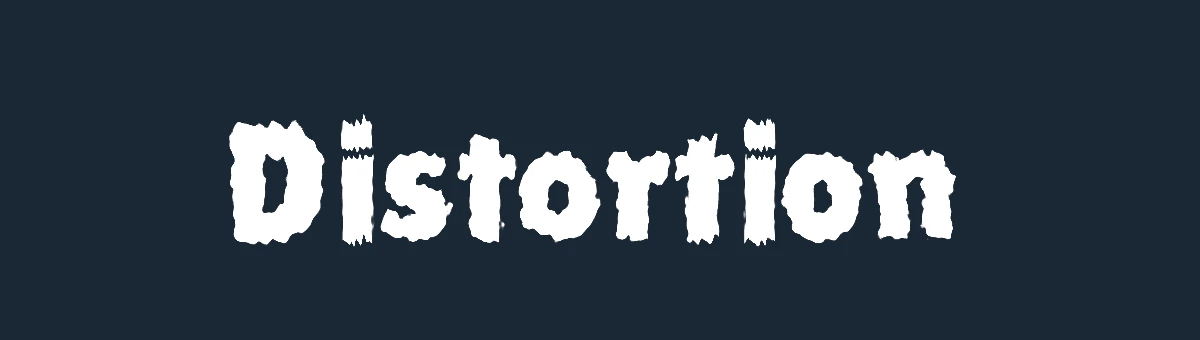
Distorts the letters with a scrolling noise texture.
| Property | What it does |
|---|---|
| Distortion Texture | The noise |
| Distortion Amount | How strong the distortion is |
| Scroll speed X, Scroll speed Y | How fast the noise scrolls |
| Movement Type | Continuous scrolls smoothly. Stepped jumps a few times per second |
| Frequency | With Stepped, how many jumps per second |