
Text Particles

Sparks, embers, hearts, lightning and dust that come out of a text’s letters: off their tops, along their edges, around the whole word, at each letter the moment it types in, when a word lands, or all the time. The particles are sprites drawn by the text’s own Canvas, so they sort, mask and batch like the rest of your UI and need no camera or sorting layer setup.
Adding it
Section titled “Adding it”The particles live on a GameObject of their own, under the text:
- Right click the text in the Hierarchy and choose Create Empty.
- On the new object, Add Component → AllIn1TextShader → Particles. It stretches over the text and finds the text above it by itself.
- Pick a setup from the Presets menu at the top of the component, then tune it.
It cannot go on the text’s own GameObject: a GameObject holds one UI graphic, and the text already is one. For several effects on one text, add one object per effect: the GO! above uses three (dust, a ground flash and sparks).
The emitter does not have to sit under its text. Anywhere under a Canvas works if you drag the text into Text (in the Text module). Shapes that need no text, like Point and Circle, work with no text at all.
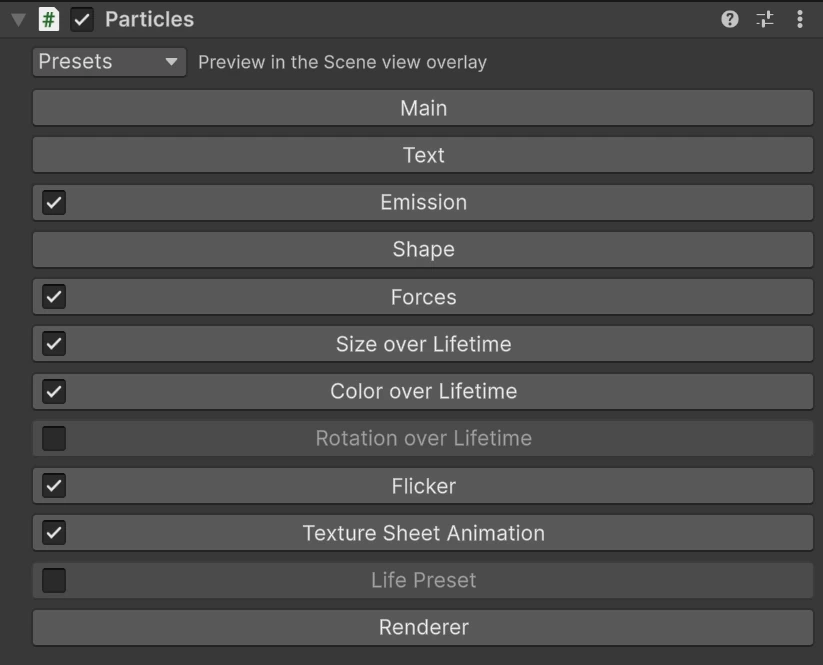
Settings are grouped in modules, as in Unity’s Particle System. Click a header to open it; the checkbox in a header turns that module on or off.
Presets
Section titled “Presets”The Presets menu sets every module up for one effect. It replaces all the settings except the linked text, and it can be undone.
| Preset | What it does | When it plays |
|---|---|---|
| Embers | Hot dots and dashes rising off the letter tops, wandering, cooling and flickering | Always, prewarmed |
| Torch Embers | Sparks rising from a point and trailing behind it when it moves | Always |
| Sparks Burst | Fast sparks thrown up from the letters and falling back | When the reveal completes |
| Dust Puff | Soft clouds thrown sideways along the ground, behind the text | When the reveal completes |
| Shockwave Flash | One wide flat flash under the word, behind it | When the reveal completes |
| Typing Sparks | A spray at each letter the moment the typewriter starts it | At each letter |
| Floating Motes | Slow twinkling dust in a box behind the text | Always, prewarmed |
| Electric Bolts | Lightning flashing on the letters, behind them | Always |
| Static Sparks | Tiny sparks blinking on the letter edges | Always |
| Glints | Star flares popping on the letters | Always |
| Hearts | Hearts floating off the letters, each popping in with a reveal animation | Always, prewarmed |
“When the reveal completes” and “at each letter” need a Typewriter on the text. In play mode, “Always” starts when the object is enabled; “prewarmed” ones start as if they had already run for a while.
Previewing in the editor
Section titled “Previewing in the editor”Select the text, or the emitter, and its particles play in the Scene view. A Text Particles overlay appears there while the selection holds emitters:
| Control | What it does |
|---|---|
| Play / Pause, Restart, Stop | Run the selected emitters and their children |
| Playback Time | Drag to scrub, forward or back. Going back to a time shows the same particles again |
| Speed | Plays the preview slower or faster (edit mode) |
| Loop Preview | Replays one shot effects, like a burst, shortly after their last particle dies (edit mode) |

In edit mode the text does not animate, so the preview stands in for it: effects that wait for a typewriter event start at once, and per letter emission runs along the letters at the reveal’s Characters per second.
In play mode the overlay works on the live particles: pause, scrub, and Replay Text, which hides the linked texts and reveals them again so their real events fire.
When they play
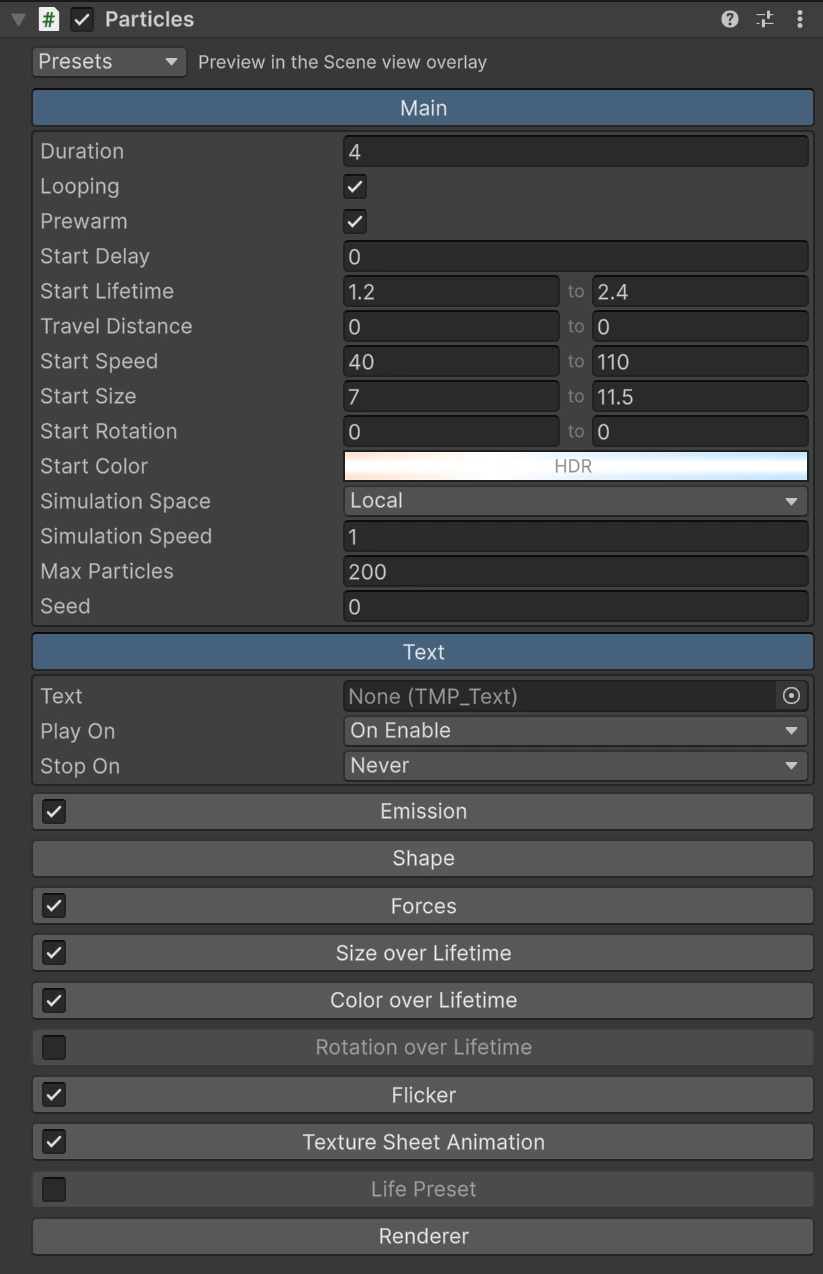
Section titled “When they play”The Text module links the emitter to its text and decides when it starts.
| Property | What it does |
|---|---|
| Text | The text whose letters the shapes and events use. Empty uses the text above this object |
| Play On | On Enable, the reveal’s Started or Completed, the hide’s Started or Completed, or Parent or Code |
| Stop On | Never, or when the hide starts or completes |
| Clear On Stop | Removes the particles already alive when it stops, instead of letting them finish |
The reveal and hide events come from the text’s Typewriter. For particles that come and go with the words, set Play On to Reveal Started and Stop On to Hide Started.
Parent or Code never starts on its own: it waits for a script’s Play(), or plays
along with the Particles object above it. That is how GO!‘s ground flash, a child of its
dust, plays with the dust.
Emission
Section titled “Emission”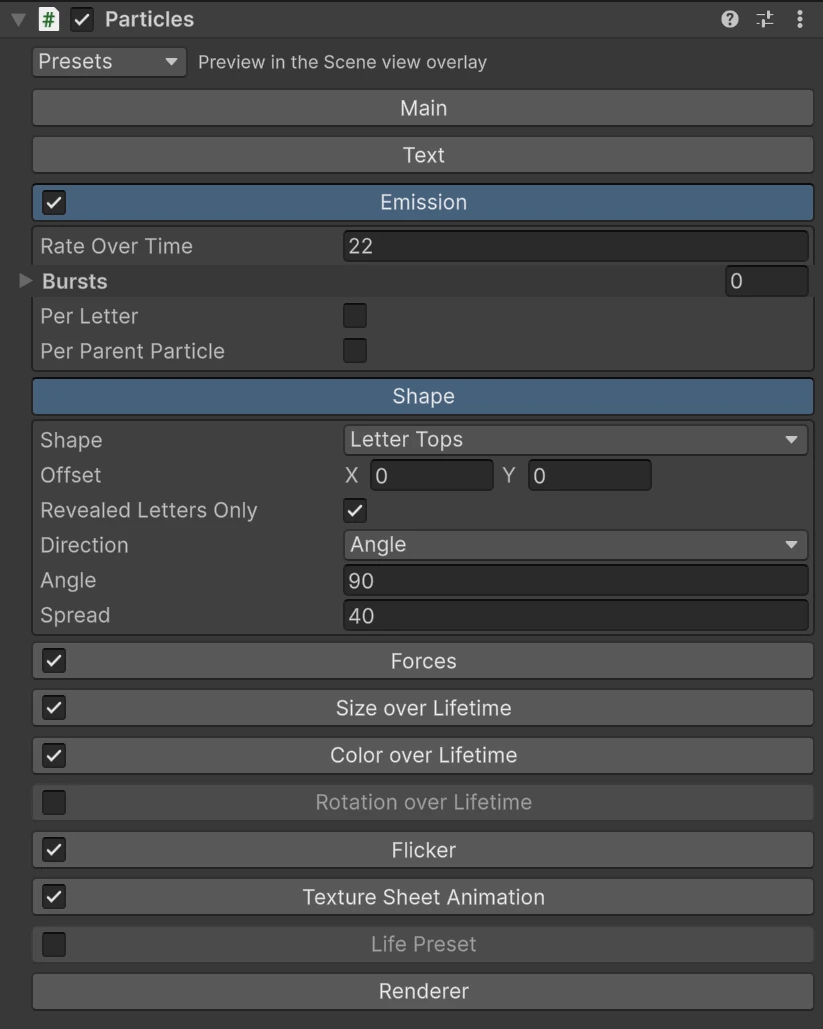
| Property | What it does |
|---|---|
| Rate Over Time | Particles per second while it plays |
| Bursts | A number of particles at once, at a time into the cycle. Cycles and Interval repeat it |
| Per Letter | Emits Per Letter Count at a letter the moment the typewriter starts revealing it |
| Per Parent Particle | Emits Per Parent Count for every particle the Particles object above it emits, at this object’s own shape. Use it to flash a glow each time a bolt strikes |
The cycle itself is set in the Main module: Duration, Looping, Start Delay, and Prewarm, which starts a looping effect as if it had already run for a while, so embers are already in the air on the first frame.
Where the particles are born.

| Shape | Particles are born |
|---|---|
| Point | At the object’s centre, moved by Offset |
| Circle | Inside a circle of Radius around that point, or on its edge with Edge Only |
| Box | Inside a box of Box Size around that point, or on its outline |
| Text Box | Inside the box around the text’s letters, or on its outline. It follows the letters as they move |
| Letters | Inside a letter, picked at random, or on its outline |
| Letter Tops / Letter Bottoms | Along the top or bottom of a letter |
The letter shapes follow the letters wherever they are: animated by the typewriter, on a spline or warped. Revealed Letters Only skips letters the typewriter has not shown yet, so particles never come out of an empty space. A letter here is its whole character box, a little bigger than the ink. Offset moves the shape, or for the letter shapes the points they pick.
Direction sets where they head, and Spread scatters them around it:

| Direction | Particles head |
|---|---|
| Angle | All the same way. 0 is right, 90 is up |
| Outward | Away from the middle of the text, or of their letter with per letter emission |
| Sideways | Left or right, away from the middle, tilted up by Angle |
| Shape Normal | Straight out of the edge they are born on: Edge Only outlines, letter tops and bottoms, circles. Like Outward elsewhere |
| Property | What it does |
|---|---|
| Start Lifetime | Seconds a particle lives. Every “to” pair picks a random value between the two for each particle |
| Travel Distance | Above 0, a particle lives as long as it takes to travel this far, so slow and fast ones fade at the same height |
| Start Speed, Start Size, Start Rotation | Size is the height in canvas units; the width follows the texture |
| Start Color | Each particle picks a random colour along this gradient. HDR colours glow with bloom |

| Simulation Space | Local particles move with the object. Canvas particles stay where they were born, so a moving emitter leaves a trail |
| Simulation Speed | Plays the effect slower or faster |
| Max Particles | The most alive at once. Past it, new ones are skipped |
| Seed | 0 gives a new pattern every time it plays. Any other number plays the same particles every time |
Over their life
Section titled “Over their life”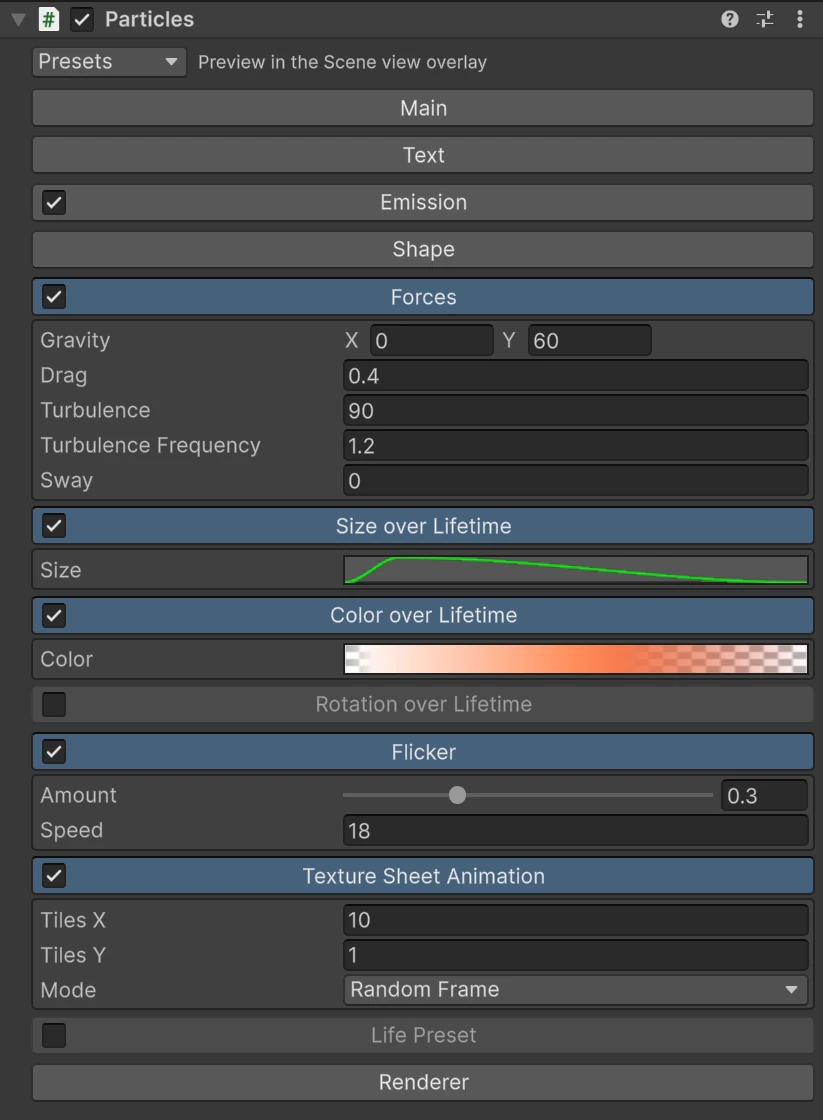
| Module | What it does |
|---|---|
| Forces | Gravity (positive Y rises, like hot air), Drag, Turbulence for a random wander, and Sway, a side to side wobble |
| Size over Lifetime | A curve that scales the size from birth (0) to death (1) |
| Color over Lifetime | A gradient that tints and fades each particle over its life |
| Rotation over Lifetime | Spin, in degrees per second. Flutter squashes the particle back and forth like a falling leaf turning over |
| Flicker | Random brightness changes, for embers and sparks |
| Texture Sheet Animation | For a texture holding several frames in a grid: play them Over Lifetime, pick a Random Frame for each particle, or Crackle to a new random frame many times a second, like lightning |
| Life Preset | Plays a typewriter reveal preset on each particle over its life, so it can pop, spin or slide in the way a letter does |
Renderer
Section titled “Renderer”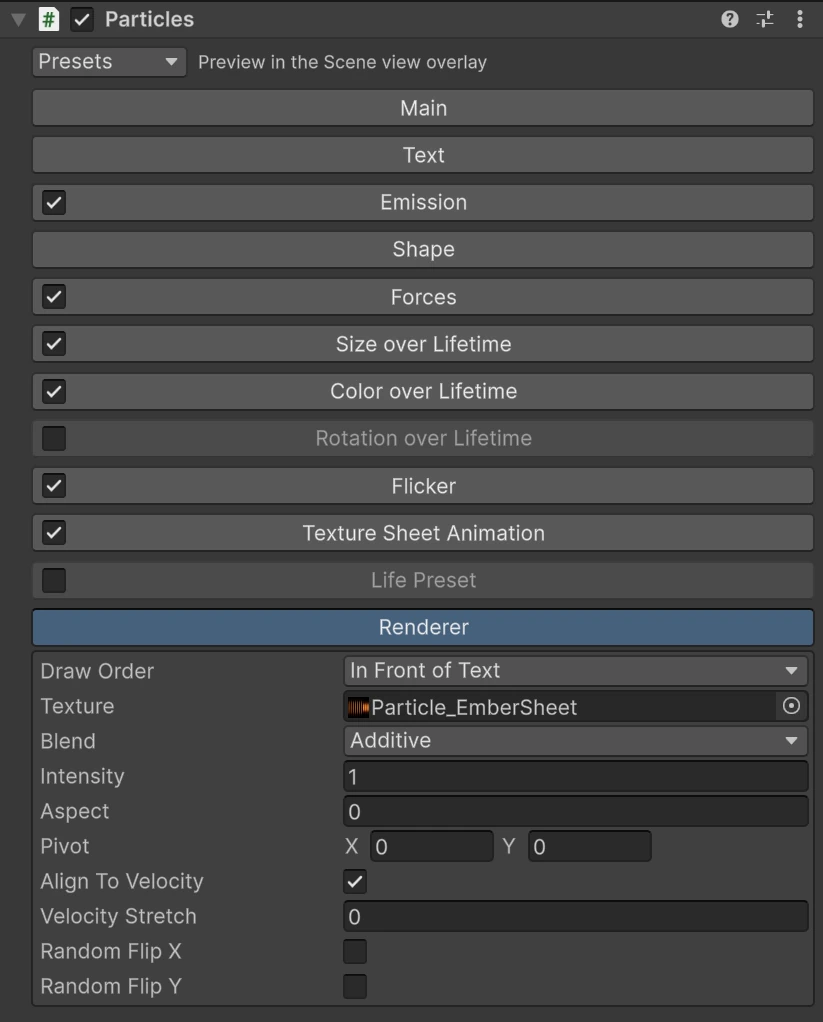
| Property | What it does |
|---|---|
| Draw Order | In Front of Text or Behind Text, wherever the object sits in the Hierarchy |
| Texture | The particle’s sprite. Empty draws white squares |
| Blend | Additive brightens what is behind and suits light: sparks, glows, fire. Alpha Blend paints over it and suits solid things: dust, hearts, drops |
| Intensity | Brightness. Above 1 reaches the bloom threshold |
| Aspect | Width over height. 0 uses the texture’s own (one frame’s, on a sheet) |
| Pivot | Where the particle sits on its sprite. (-0.5, 0) is the left end, so a streak turned to its motion grows out of where it was born |
| Align To Velocity | Turns each particle to face where it moves. Velocity Stretch makes fast ones longer |
| Random Flip X, Random Flip Y | Mirrors some particles at random, so one sprite looks like several |

The toolkit ships fourteen sprites in its Textures/Particles folder: a soft glow, a haze, a flare, an ember sheet, a lightning sheet, a dot, a sparkle, a heart, a droplet, a diamond, a snowflake and more. Any texture works.
Recipes
Section titled “Recipes”A word that lands with a bang. Give the text a Typewriter whose reveal drops or scales the word in. Under it, add three Particles objects with the presets Dust Puff, Sparks Burst and Shockwave Flash. Put the flash under the dust and set its Play On to Parent or Code, so it plays with the dust, and lower its Offset Y to the bottom of the letters. All three fire when the reveal completes.
Sparks while a dialogue types. Add Typing Sparks under a text with a Typewriter. Each letter sprays as it appears, whatever the typing speed and wherever the letter is. Lower Per Letter Count and Start Speed for a softer touch.
A burning title. Add Embers under the title. It loops and prewarms, so the embers are already rising when the scene opens. Raise Rate Over Time for a bigger fire.
Lightning on a word. Add Electric Bolts, Static Sparks and Glints under it. The bolts draw behind the letters, the sparks and glints in front.
Dust in a menu. Add Floating Motes under the menu’s title and set its Box Size to the area to fill. The motes drift behind the text.
A burst from your own code. Set Play On to Parent or Code, then call Emit or Play
from your script, see below.
Scripting
Section titled “Scripting”using AllIn1Assets.AllIn1TextShader;using UnityEngine;
public class CoinCounter : MonoBehaviour{ [SerializeField] private AllIn1TextParticles sparkle; [SerializeField] private AllIn1TextParticles embers;
public void OnCoinPicked() { sparkle.Emit(25); }
public void OnComboChanged(int combo) { embers.rateMultiplier = Mathf.Clamp(combo / 10f, 0f, 3f); }}| Member | Notes |
|---|---|
Play() | Starts emitting, and plays the Particles objects below set to Parent or Code. Play(false) plays this one only |
Stop(), Clear() | Stop emitting, or remove every particle, here and in the Particles objects below (false for this one only). Stop(true, true) stops and clears |
Restart() | Starts over as if the trigger had just fired |
Emit(count), EmitAtLetter(characterIndex, count) | Particles right now, at the shape or at one letter. The index is into the text’s textInfo.characterInfo |
Simulate(time) | Jumps to time seconds after the start and holds there (paused is set; clear it to go on) |
rateMultiplier | Scales Rate Over Time, for a fire that grows or a torch that dims |
paused | Freezes the particles where they are |
OnEmitted | An event raised with how many particles each emission made |
ParticleCount, IsEmitting, IsAlive | Read only |
color | Tints every particle (the Unity UI graphic colour) |
Every module is a field you can change at runtime, by the names in the inspector:
main, textLink, emission, shape, forces, sizeOverLifetime,
colorOverLifetime, rotationOverLifetime, flicker, textureSheet, lifePreset and
rendererModule. For example, embers.main.startSpeed = new TextParticlesRange(40f, 110f);.
Good to know
Section titled “Good to know”- It needs a Canvas. The particles are a UI graphic, so the emitter sits under a Canvas, like the UI text it decorates. Masks and Rect Mask 2D clip it.
- Glow needs bloom. HDR colours and an Intensity above 1 make particles bright enough for a bloom post effect to glow. Without bloom they are just bright.
- They follow game time. Particles run on
Time.deltaTime, so they freeze whileTime.timeScaleis 0, for example in a pause menu. - Fallback fonts. The letter shapes use the letters of the text’s own font. Characters
drawn from a fallback font, a
<font>tag or a sprite asset are skipped. - Busy canvases. While particles are alive their Canvas updates every frame, as it would for any animated UI. If the rest of that Canvas is heavy, put the effect under a Canvas of its own.