
Fonts and Font Assets
Every TextMeshPro text draws from a font asset: an atlas holding each letter as a distance field, which stores how far each pixel is from the letter’s edge. The toolkit’s effects read that field, so the font asset decides how far outlines, glows and shadows can reach and how good they look. This page covers what the toolkit wants from a font asset, and the one button that makes one for you.
The font check
Section titled “The font check”The All In 1 Text Shader component checks the text’s font asset and says one of two things:
- Font asset is correctly configured: nothing to do.
- To ensure the best displaying result, it’s recommended to reconstruct the font atlas, with a Create Font Atlas button under it.
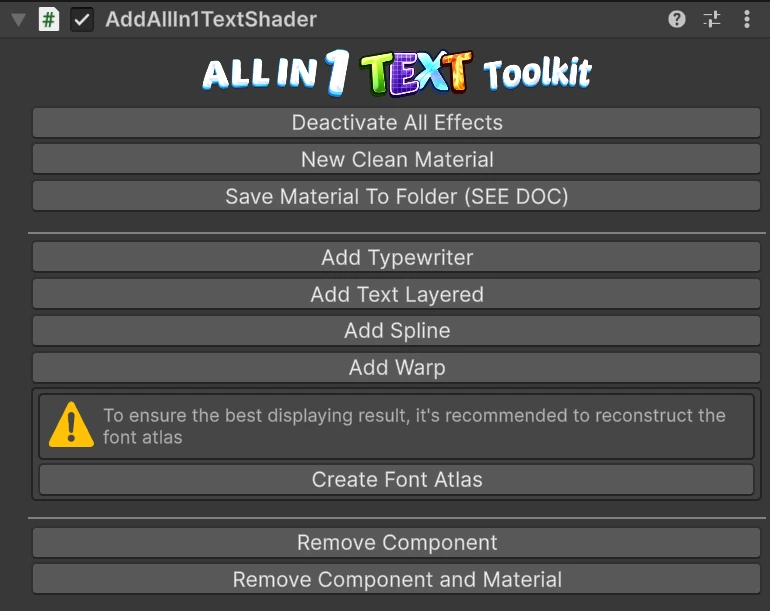
The check passes when the atlas has a Padding of 20 or more and is 2048 × 2048. Padding is the band around each letter the atlas stores, and it is what every effect that reaches outside the letter draws in.
Create Font Atlas
Section titled “Create Font Atlas”Builds a new font asset from the same font, set up for the toolkit, and switches the text to it:
| Setting | Value |
|---|---|
| Render Mode | SDFAA |
| Padding | 20 |
| Atlas | One 2048 × 2048 texture |
| Atlas Population Mode | Static |
| Characters | The printable ASCII characters, plus the no break space, curly quotes and the ellipsis (… ‘ ’ “ ”) |
| Point size | 280, or the largest size that fits every character on the one atlas |
It also gives the text a fresh material that keeps your current values, and makes the
blurred atlas some effects need. The new font asset is saved in
AllIn1TextShader/Config/Font Assets TMP/, named after the font. Pressing it on a font
asset that is already in that folder rebuilds that one in place.
It needs the font asset’s Source Font File, the original font the asset was made from. If it has none, a dialog says so and nothing changes: assign the font in the font asset’s Generation Settings and press it again.
Other characters and languages
Section titled “Other characters and languages”Create Font Atlas only adds the characters above. For accented letters, other alphabets or symbols, make the font asset yourself in TextMeshPro’s Font Asset Creator (Window → TextMeshPro → Font Asset Creator) with these settings:
- Render Mode SDFAA.
- Padding 20 or more.
- Atlas Resolution 2048 × 2048, with the characters you need in Character Set.
- Generate and save, then set the font asset’s Atlas Population Mode to Static.
A character the text uses but its font asset lacks still shows, drawn by TextMeshPro from a fallback font, but without the toolkit’s effects. See Characters from another font asset.
Static, not Dynamic
Section titled “Static, not Dynamic”Bevel, Outline and Drop Shadow read a blurred copy of the font atlas, which the toolkit makes in the editor. A Dynamic font asset adds letters to its atlas at runtime, and those letters have no blurred copy, so these three effects draw them wrong. The component warns when the font asset is Dynamic and the material uses one of them. Set the font asset’s Atlas Population Mode to Static.
The blurred atlas
Section titled “The blurred atlas”The blurred copy is made for you, the first time you turn on Bevel, Outline or Drop
Shadow on a font, and rebuilt when the font asset changes. It is saved next to the font
assets, as AllIn1TextShader/Config/Font Textures/<atlas name>_Blurred.png, and
assigned in the material’s Show Font Properties section. Leave both alone: if you
delete the file, the next edit to the material makes it again.
How far an effect can reach
Section titled “How far an effect can reach”Face Dilate, Outline Thickness, Glow Size and Shadows Size are measured in the font’s own distance unit, where 1 is the atlas padding. A Face Dilate of 0.2 plus an outline of 0.5 reaches 0.7 of the padding, at any font size.
Effects add up along one distance: Face Dilate, the widest outside outline and the outer glow on top of it. When that total passes 1, past what the atlas stores, the shader rebuilds the distance field around each letter with extra texture reads. It still looks right, and the material inspector says so with a note under the effect:
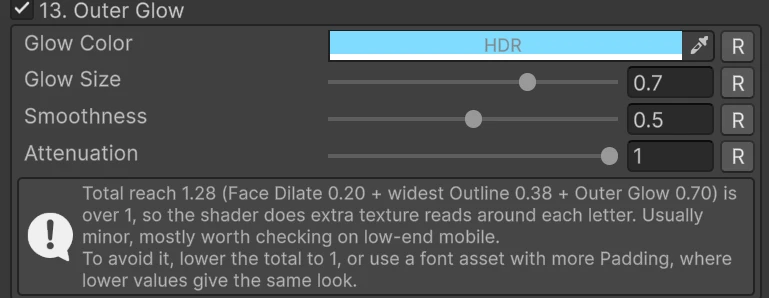
Each drop shadow gets its own note, with the largest Shadows Size that stays within 1, and Extrude gets one for its outline.
The cost only matters with a lot of large text on a slow GPU. If you see the note on a look you want to keep, a font asset with more padding makes the same look with smaller values and no extra cost.
Characters from another font asset
Section titled “Characters from another font asset”When a text uses a character its font asset does not have, TextMeshPro draws it from
somewhere else: a fallback font, a bold or italic typeface from the font’s weight table,
or a <sprite>. Those characters are drawn with that asset’s own material, so:
- They get none of the toolkit’s effects.
- They do not reveal, hide or animate with the Typewriter: they show from the start.
The component warns with a count of such characters. To include them, add them to the text’s font asset, or use a font asset that has them.
<b> and the Bold font style work with every effect when the font asset has no bold
typeface of its own: TextMeshPro then thickens the same letters, and the outlines and
shadows follow the thicker shape. If the font asset’s weight table names a separate bold
font asset, that typeface counts as another font asset, as above.