
Text on a Spline

Lays a text along a curve you draw in the Scene view. The text can scroll along it, show only inside a window of the curve with letters playing effects as they enter and leave, and travel in and out on command. Every typewriter effect rides the curve with the letters, and every material effect keeps its shape on the bent text.
Adding it
Section titled “Adding it”Select the text and press Add Spline on its All In 1 Text Shader component. The text bends onto a default arch across its rect, ready to edit. Remove Spline takes it off again; it cannot be undone, so keep a copy of a curve you spent time on.
The component is also in Add Component under AllIn1TextShader → Spline, and starts with the same arch.
Drawing the curve
Section titled “Drawing the curve”Press Edit Spline. The transform gizmo hides and the curve’s points and handles show in the Scene view, until you press the button again or Escape.
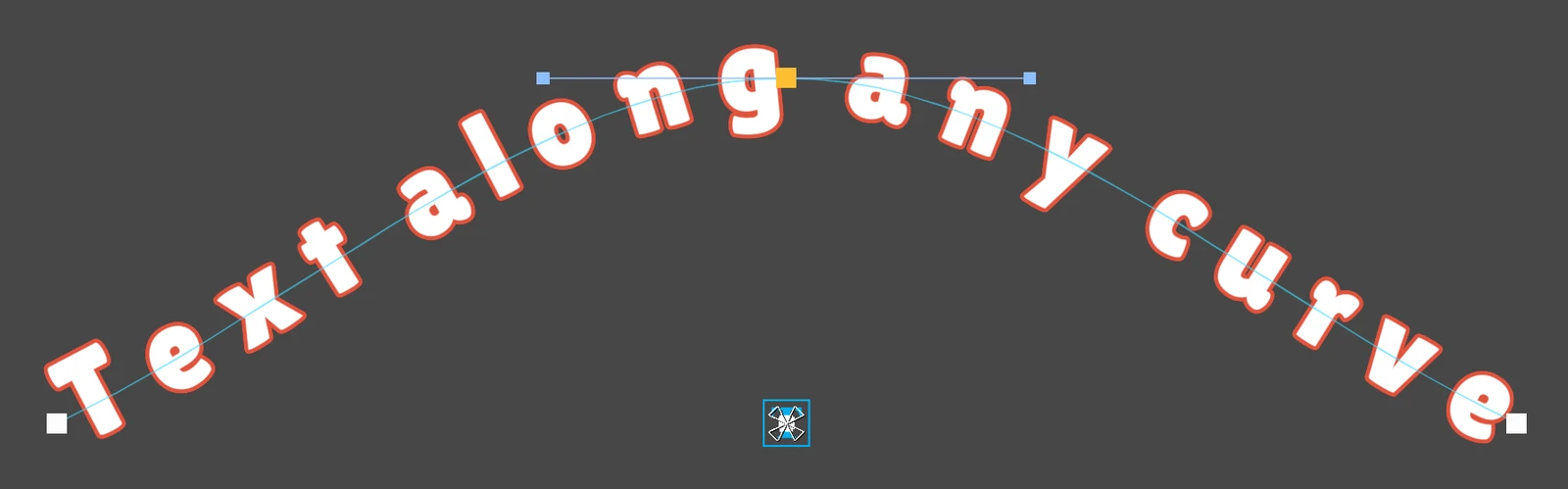
| In the Scene view | What it does |
|---|---|
| Drag a point | Moves it, and selects it |
| Drag a handle | Bends the curve. Handles show on the selected point |
| Shift | Shows where a new point would go |
| Shift + click | Adds a point there: on the curve if you click on it, otherwise after the selected point |
| Delete or Backspace | Removes the selected point. A curve keeps at least two |
| Escape | Stops editing |
Every change can be undone. The curve is always drawn with arrows showing its direction, and faintly when the object is not selected.
Spline
Section titled “Spline”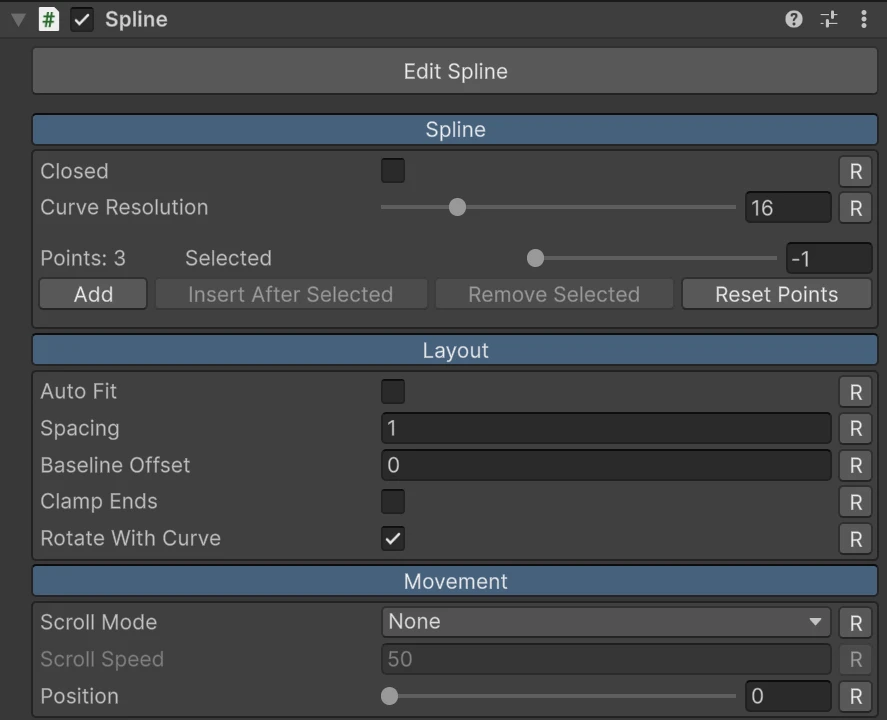
| Property | What it does |
|---|---|
| Closed | Joins the last point to the first, for a loop |
| Curve Resolution | How finely the curve is measured. Raise it if letters bunch up on tight bends |
| Selected | Which point is selected, also set by clicking one |
| Add | Adds a point after the last one |
| Insert After Selected | Adds a point halfway to the next one |
| Remove Selected | Removes the selected point |
| Reset Points | Replaces every point with the default arch |
| Position | The selected point’s position, in the text’s local space (pixels for UI text) |
| Curvature | Auto makes a smooth curve from the neighbouring points. Mirrored keeps the two handles opposite and equal. Broken lets them move apart, for a corner |
| Tangent In, Tangent Out | The handles, shown when Curvature is not Auto |
Dragging a handle on an Auto point switches it to Mirrored.
Layout
Section titled “Layout”| Property | What it does |
|---|---|
| Auto Fit | Spaces the text to cover the whole curve |
| Spacing | Stretches or squeezes the text along the curve. 1 keeps its own spacing. Ignored while Auto Fit is on |
| Baseline Offset | Moves the text off the curve, to one side. Positive is the left of the curve’s direction |
| Clamp Ends | On an open curve, letters past the ends pile up there instead of disappearing |
| Rotate With Curve | Turns each letter to follow the curve. Off keeps every letter upright |
Text with several lines stays stacked, each line along the curve.
Movement
Section titled “Movement”| Property | What it does |
|---|---|
| Scroll Mode | None stays at Position. Ping Pong travels back and forth along the free part of the curve. Loop travels the whole curve and wraps around |
| Scroll Speed | In the text’s local units per second, so pixels per second for UI text |
| Position | Where the text sits along its range, from 0 to 1. Scrub it to place the text |
Scrolling runs in play mode. Ping Pong does nothing when the text is as long as the curve or longer, since there is no room to move. Loop wraps the text around even on an open curve.
Enter and exit
Section titled “Enter and exit”Turn on Enter Exit Enabled and only a window of the curve shows letters. Letters play entrance effects as they move into the window and exit effects as they move out, so a scrolling text can fade, shrink or spin in at one end and out at the other.
| Property | What it does |
|---|---|
| Visible Range | The part of the curve where letters show, as a fraction of its length |
| Enter Length | How long the entering zone at the start of the window is |
| Exit Length | How long the leaving zone at its end is |
| Use Enter As Exit Config | Plays the enter effects backwards as the exit, as the typewriter’s hide does with its reveal. Off lets you pick a separate exit preset |
| Enter Effects, Exit Effects | The presets, the same ones the typewriter’s Reveal and Hide use. See Typewriter |
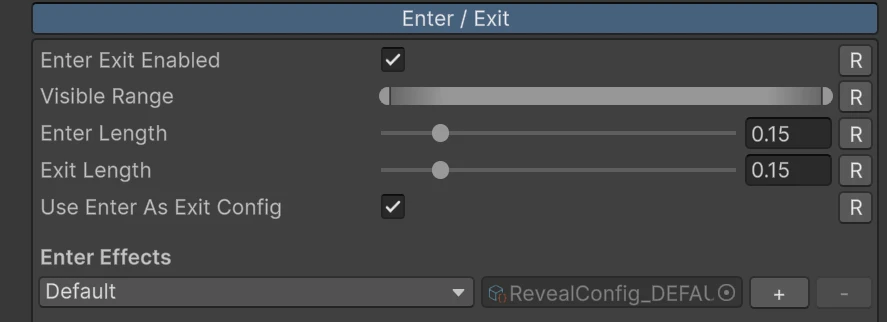
The effects are driven by where a letter is in the zone, not by time: a letter halfway through the entering zone is halfway through its entrance. So the preset’s speed, order and per word grouping do not apply here; each letter follows its own position.
The Scene view shows the window as a thick band, with its two zones in a lighter tint. Scrub Position in edit mode to preview it.
Show and Hide
Section titled “Show and Hide”Show() moves the text in from outside the window to its Position, and Hide() moves it
out through the other side. The window is the enter and exit window when it is on, or the
whole curve otherwise. In play mode the inspector has Show and Hide buttons to try
it.
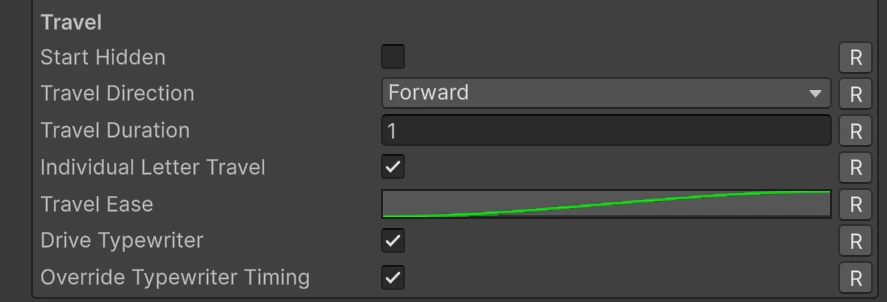
| Property | What it does |
|---|---|
| Start Hidden | In play mode, the text starts out of sight and waits for Show() |
| Travel Direction | Forward comes in through the window’s start and leaves through its end. Backward is the reverse |
| Travel Duration | Seconds a Show or Hide takes |
| Individual Letter Travel | Each letter makes its own trip at one shared speed, so letters near the edge arrive first and all of them settle together. Off moves the text as one block |
| Travel Ease | A curve that shapes the motion over time |
| Drive Typewriter | With a typewriter on the text, Show() also plays its reveal (and starts its loops) and Hide() its hide |
| Override Typewriter Timing | The travel sets the reveal and hide progress instead of the typewriter’s clock: it starts as the text sets off and ends as it lands. As one block, every letter shares that progress. With Individual Letter Travel, each letter follows its own trip |
Show() while the text is already on its way in does nothing, and while it is hiding it
turns around from where it is. Hide() works the same way the other round.
ShowImmediate() and HideImmediate() jump to the end with no travel.
Events
Section titled “Events”In the Events section, On Show Completed fires when a Show lands and On Hide
Completed when a Hide has finished and the text is out of sight. From code they are the
OnShowCompleted and OnHideCompleted C# events. ShowImmediate() and HideImmediate()
fire neither.
A typewriter driven by the spline fires its own events too, see Typewriter.
From code
Section titled “From code”using AllIn1Assets.AllIn1TextShader;using UnityEngine;
public class BannerIntro : MonoBehaviour{ [SerializeField] private AllIn1TextSpline spline;
private void OnEnable() { spline.OnShowCompleted += OnShown; spline.Show(); }
private void OnDisable() { spline.OnShowCompleted -= OnShown; }
private void OnShown() { Debug.Log("The title has landed"); }}Every setting in the inspector is a property: ScrollMode, ScrollSpeed, Position,
Spacing, AutoFit, VisibleStart, VisibleEnd, TravelDuration and so on. IsShown
and IsTraveling say where the text is. Points are edited with GetPoint, SetPoint,
SetPointPosition, AddPoint, InsertPoint and RemovePoint, in the text’s local space.
Good to know
Section titled “Good to know”- The spline goes after the motion effects and before the warp. Reveal, loop and hide effects move each letter in the curve’s own frame, and a Warp on the same text bends the whole curved text as one.
- Characters from another font asset (a fallback font, a bold typeface, a
<sprite>) are placed on the curve, but skip the enter and exit effects and move as one block during a letter travel. See Troubleshooting. - Auto Fit on a closed curve measures from the first letter to the last, so a space at the end of the text does not count, and the gap where the loop closes comes out tighter than the others. For an even loop, turn Auto Fit off and set Spacing by hand.
- Clicks and links use the flat text’s layout, not the curve.