
Text Layers
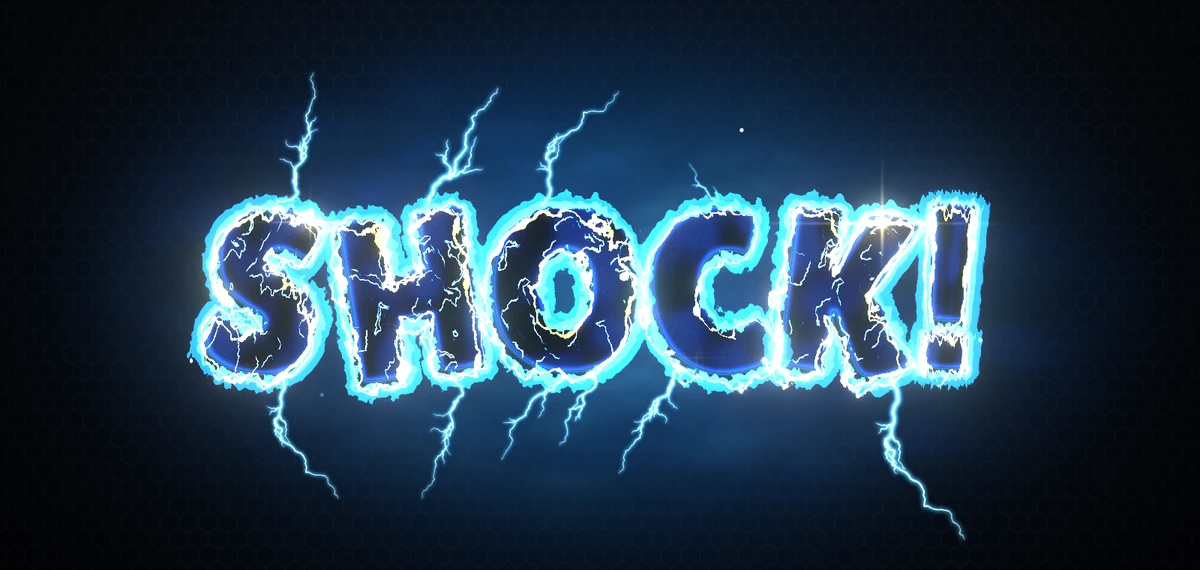
Extra copies of a text, each with its own material, offset and blending mode: a soft cloud over a dreamy title, several additive lightning passes over a shock effect, or more outlines than one material holds. Each layer is the same text, so it follows the main text everywhere.
Adding layers
Section titled “Adding layers”Select the text and press Add Text Layered on its All In 1 Text Shader component. This adds the Text Layered component, where New Layer adds a layer.
Text layers draw through the UI canvas, so they need a TextMeshPro - Text (UI) text. On a 3D TextMeshPro the button is disabled.
Remove Text Layered deletes every layer along with the component. It cannot be undone.
Each layer
Section titled “Each layer”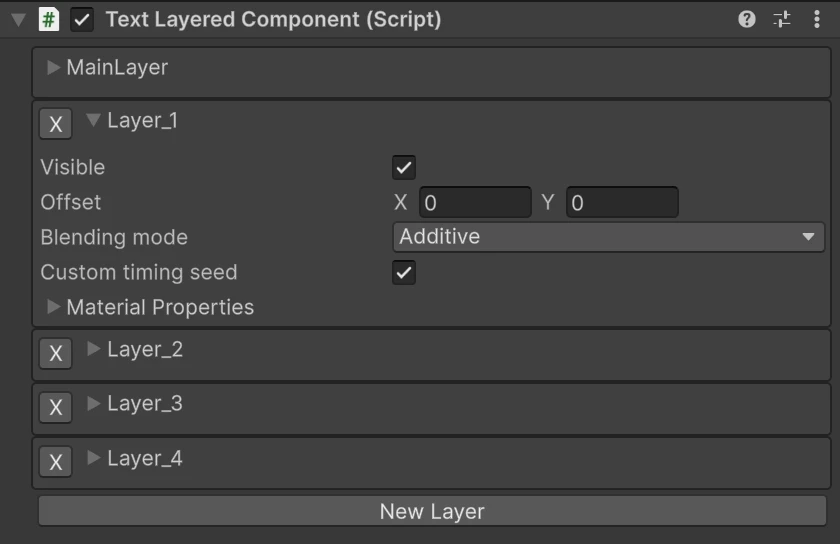
| Property | What it does |
|---|---|
| X | Removes the layer at once, with no confirmation and no undo |
| Visible | Shows or hides the layer |
| Offset | Moves the layer from the main text, in its local units (pixels for UI text) |
| Blending mode | No Blend draws it normally, Additive adds its light, Multiply darkens what is under it |
| Custom timing seed | Gives the layer its own timing per letter, so its animated effects run out of step with the main text instead of in step |
| Material Properties | The layer’s own material, with the full material inspector |
The MainLayer box at the top holds the main text’s material, so a whole layered look can be edited in one place.
A new layer’s material starts as a copy of the main text’s material at that moment. After that the two are separate: change one and the other stays as it was.
How layers follow the main text
Section titled “How layers follow the main text”A layer has no text of its own. It draws the main text’s finished letters, so everything that moves them moves the layers too: the typewriter, the spline, the warp, underlines and Extrude’s side walls. Change the text, its size or its alignment and every layer follows.
Layers draw over the main text, in the order they were created. To put a look under the text, such as a wide glow or a dark backing, give that look to the main text’s material and move the face into a layer above it.
Good to know
Section titled “Good to know”- Layers are made in the editor. They cannot be added at runtime, but each layer’s material and settings can be changed from code like any material.
- Each layer costs another draw of the whole text, with its own material’s effects.
- Masks work. Under a RectMask2D and under a Mask, layers are clipped like the main text.
- Extrude per layer. A layer can have Extrude on its own material, and its sides draw behind its own letters.
- Characters from another font asset (a fallback font, a bold typeface) appear in every layer at its offset, but without the layer’s effects or blending mode, as on the main text. See Troubleshooting.
- Duplicating the text, or dragging in a prefab, gives every layer its own copy of its material.