
Warp
Bends a whole text into a shape: Photoshop’s Warp Text styles (arcs, flags, bulges, fisheye and the rest), a banner that waves on its own, a circle, or a cage you shape by hand. Everything else on the text bends with it: the typewriter’s effects, the spline, underlines, and every material effect.
Adding it
Section titled “Adding it”Select the text and press Add Warp on its All In 1 Text Shader component. It is also in Add Component under AllIn1TextShader → Warp. It must sit on the text’s own GameObject; on another object it has nothing to bend, and its inspector says so.
Remove Warp cannot be undone. It asks first when the style is Custom with a shaped cage.
| Property | What it does |
|---|---|
| Style | The shape, see below |
| Bend | How strong the warp is. Negative bends the other way |
| Orientation | Horizontal bends along the text’s width, Vertical along its height |
| Horizontal Distortion | Squeezes one side and widens the other, left against right |
| Vertical Distortion | The same, top against bottom |
| Customize | Copies the current style, as it looks now, into a Custom cage you can then finish by hand |
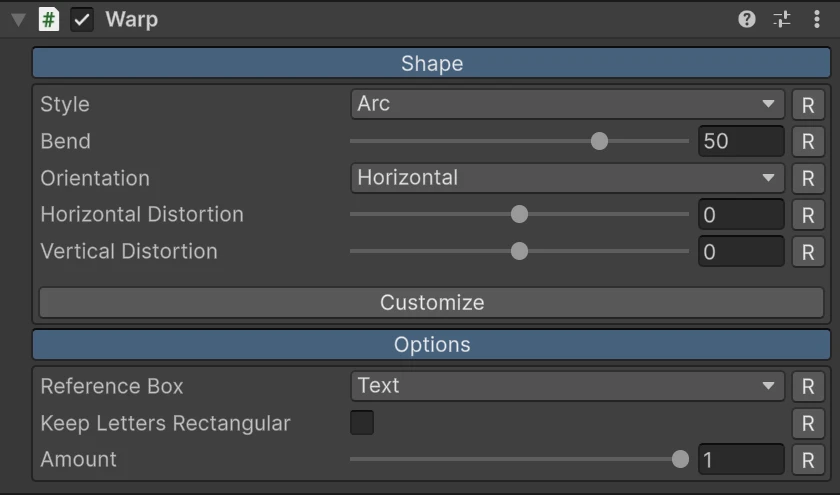
These follow Photoshop’s Warp Text, so a look matched there carries over.
Styles
Section titled “Styles”The menu lists the clearly different styles first: Arc, Arch, Bulge, Flag, Banner, Rise, Fisheye, Twist, Circle and Custom. On a single line some of Photoshop’s styles look almost alike, so those sit under More: Arc Lower, Arc Upper, Shell Lower, Shell Upper, Wave, Fish, Inflate and Squeeze.
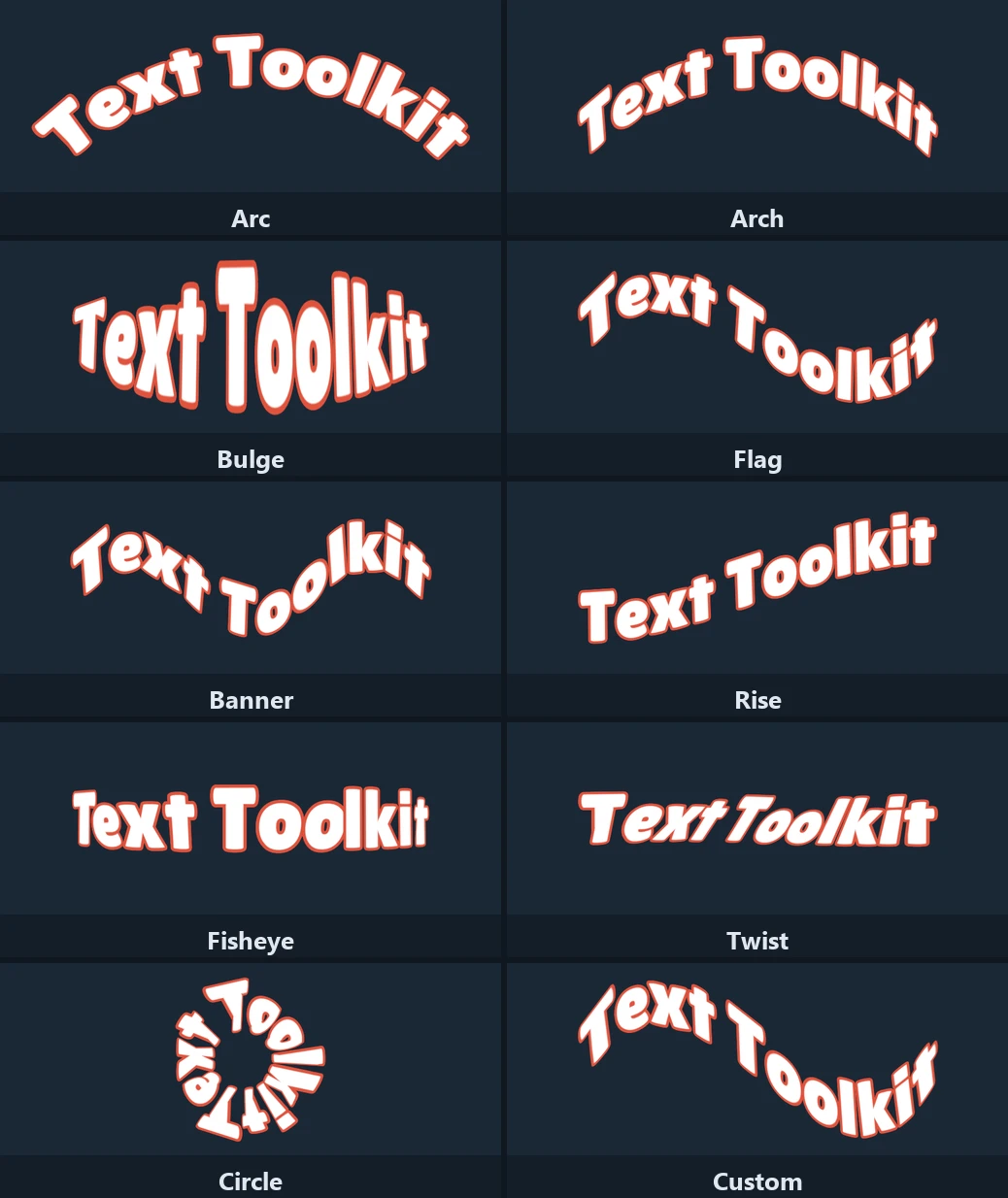
Bend goes from -100 to 100, as in Photoshop. Flag, Banner, Wave, Fish, Rise, Twist, Inflate and Squeeze go to 300, since at 100 they look weak on a single line.
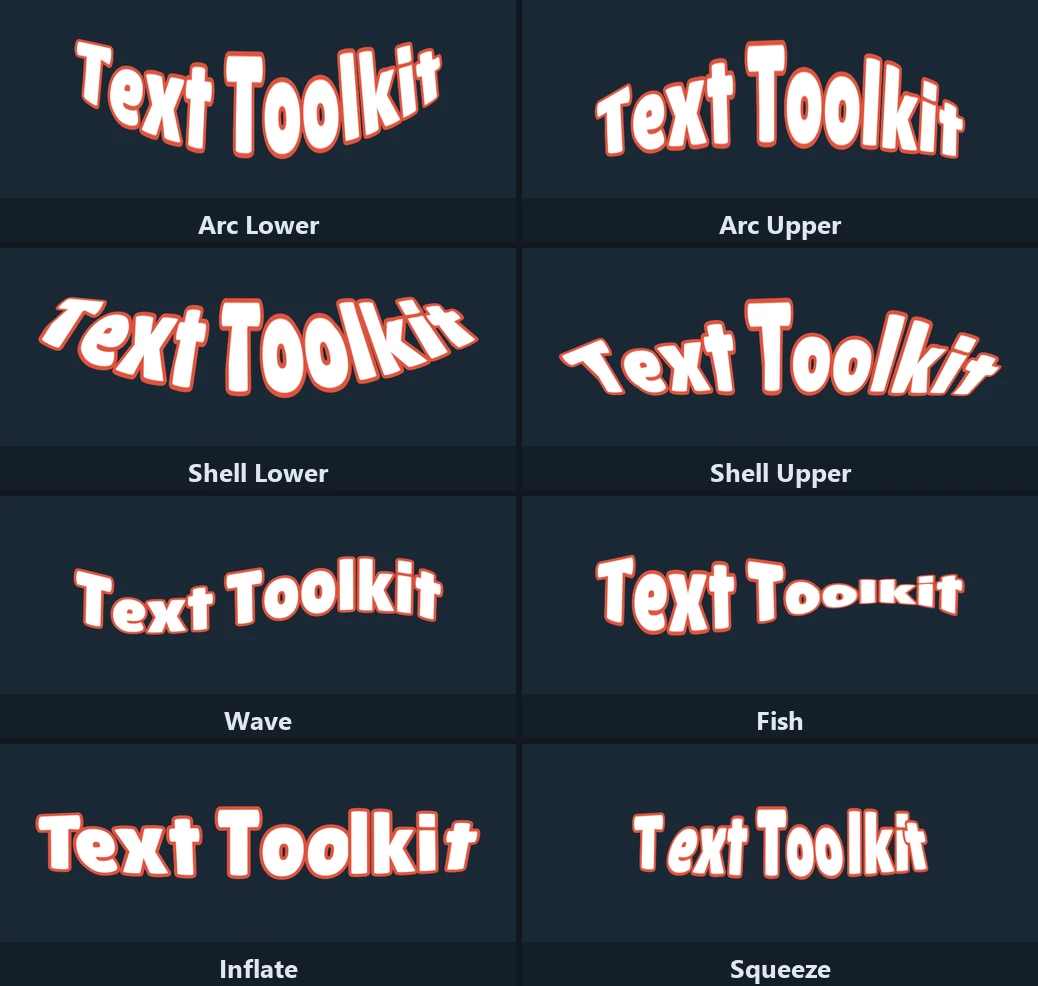
- Circle wraps the text around a circle and keeps its length. Positive Bend puts the text on top of the circle, negative underneath, and 100 closes it. Distortion and Orientation do not apply.
- Twist ignores Orientation.
- Banner is a wave that runs along the text and travels on its own in play mode, see below.
- Custom is a cage you drag by hand, see below.
Banner
Section titled “Banner”Banner replaces the distortions with its own settings.
| Property | What it does |
|---|---|
| Waves | How many full waves fit along the text |
| Speed | Waves per second it travels in play mode, toward the end for positive values. 0 holds it still |
| Phase | Where the wave starts, as a fraction of one wave. Scrub it to preview the motion in edit mode |
| Pin | Start (left or top) or End (right or bottom) holds that end still, like a flag on its pole, so the wave grows from there |
| Unscaled Time | Keeps waving while the game is paused with Time.timeScale |
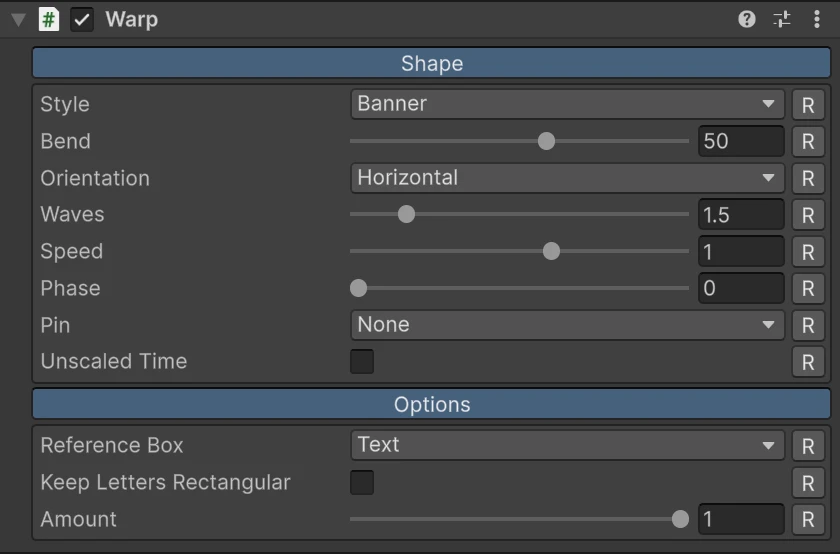
At Bend 100 the crests rise by the text’s full height.
Custom cage
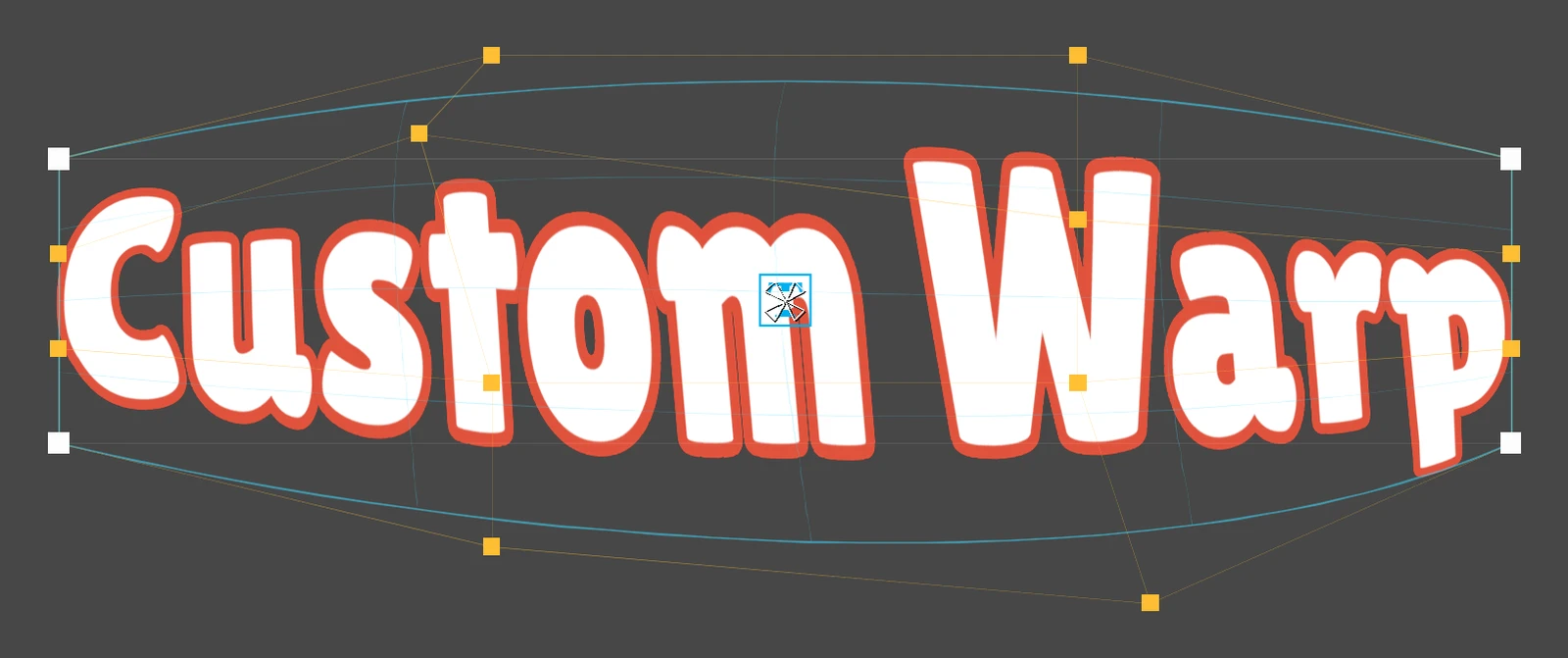
Section titled “Custom cage”Custom is Photoshop’s free warp: a grid of 4 by 4 points over the text. The corners pin the box, the edge points bend its sides and the four inner points pull the middle.
Press Edit Cage to show the 16 points in the Scene view and drag them. Escape, or the button again, stops editing. Symmetric moves each point’s mirror across the box’s middle too, and Reset Cage flattens it back to the plain box. Every change can be undone.
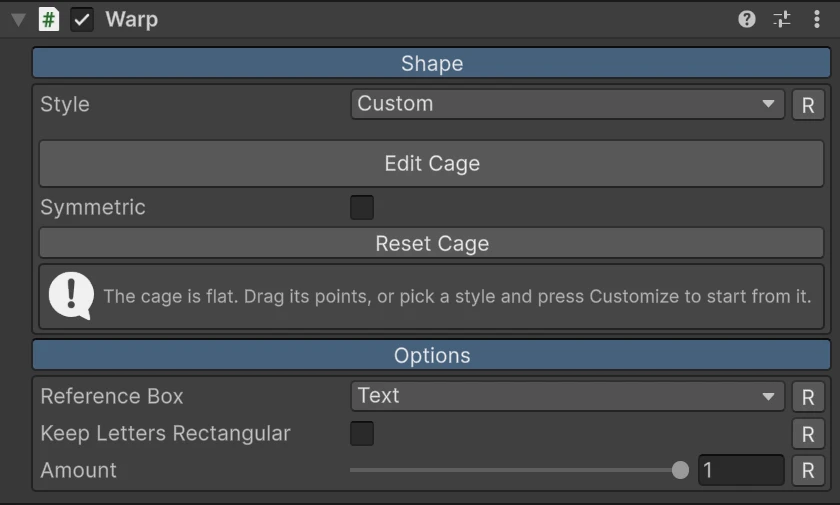
The quickest start is usually another style: pick it, set its Bend, then press Customize. The cage takes that shape exactly, Amount goes to 1, and you finish it by hand. Circle and Banner have no cage to copy.
Options
Section titled “Options”| Property | What it does |
|---|---|
| Reference Box | What the warp is stretched over. Text is the text’s own layout box, and the curve’s bounds when a spline is on. Rect Transform is the object’s rect, so the warp stays put when the text changes |
| Keep Letters Rectangular | Each letter turns and scales as one rectangle instead of bending at its corners |
| Amount | Scales the whole warp, from none at 0 to full at 1 |
Text measures the layout, not the letters as they animate, so the warp holds still while the typewriter reveals, moves or hides letters. A short word in a wide Rect Transform rides the shoulder of the warp, as box text does in Photoshop.
Keep Letters Rectangular keeps outlines, glows and shadows exact and avoids a faint crease that strongly tapered letters show along their diagonal. Letters no longer taper, though. Underlines always bend with the warp.
With the object selected, the Scene view shows the box faintly and the warped envelope over it.
Animating it
Section titled “Animating it”Every value can change at runtime, and the text follows the same frame. Every value in between is a real warp, so Amount from 0 to 1 warps a text in, and back to 0 warps it out.
The Animator and Timeline can key bend, amount, horizontalDistortion,
verticalDistortion and Banner’s waves, speed and phase directly, in the Animation
window too.
From code, set the properties. There is nothing to apply:
using AllIn1Assets.AllIn1TextShader;using UnityEngine;
public class WavingSign : MonoBehaviour{    [SerializeField] private AllIn1TextWarp warp;
    private void Start()    {        warp.Style = TextWarpStyle.FLAG;    }
private void Update() { warp.Bend = Mathf.Sin(Time.time * 3f) * 250f; }}| Member | Notes |
|---|---|
Style, Orientation, ReferenceBox, KeepLettersRectangular | The style enum’s members are ARC, ARCH, BULGE, FLAG, BANNER, RISE, FISHEYE, TWIST, CIRCLE, CUSTOM, ARC_LOWER, ARC_UPPER, SHELL_LOWER, SHELL_UPPER, WAVE, FISH, INFLATE, SQUEEZE |
Bend | Each style limits it to its own range, so Style and Bend can be set in either order |
HorizontalDistortion, VerticalDistortion | -100 to 100 |
Amount | 0 to 1. The one to tween |
Waves, Speed, Phase, Pin, UnscaledTime | Banner’s settings |
GetCagePoint(i), SetCagePoint(i, point), ResetCage() | The Custom cage. Point i is row * 4 + column, top row first, in 0 to 1 across the box with y going down |
CustomizeFromStyle() | Copies the current style into the cage and switches to Custom |
The cage cannot be keyed in an animation, so animate it from code with SetCagePoint.
A value set in Update, a coroutine, the Animator or Timeline shows the same frame. One set
later, in a LateUpdate or after WaitForEndOfFrame, shows a frame later.
Good to know
Section titled “Good to know”- Material effects that cover the whole text, such as a Rect gradient, Shine or the LED grid, stay laid out on the flat text and do not bend with it.
- Outlines, glows and shadows stretch with the letters, since they are measured on the letter.
- Clicks and links use the flat text’s layout, not the warped one.