
Typewriter
The Typewriter makes a text move. It reveals the text letter by letter or word by word, keeps it alive with looping motion while it is on screen, and hides it again, with events for typing sounds and for knowing when a line is done. Its effects are listed in Motion Effects and Tags.
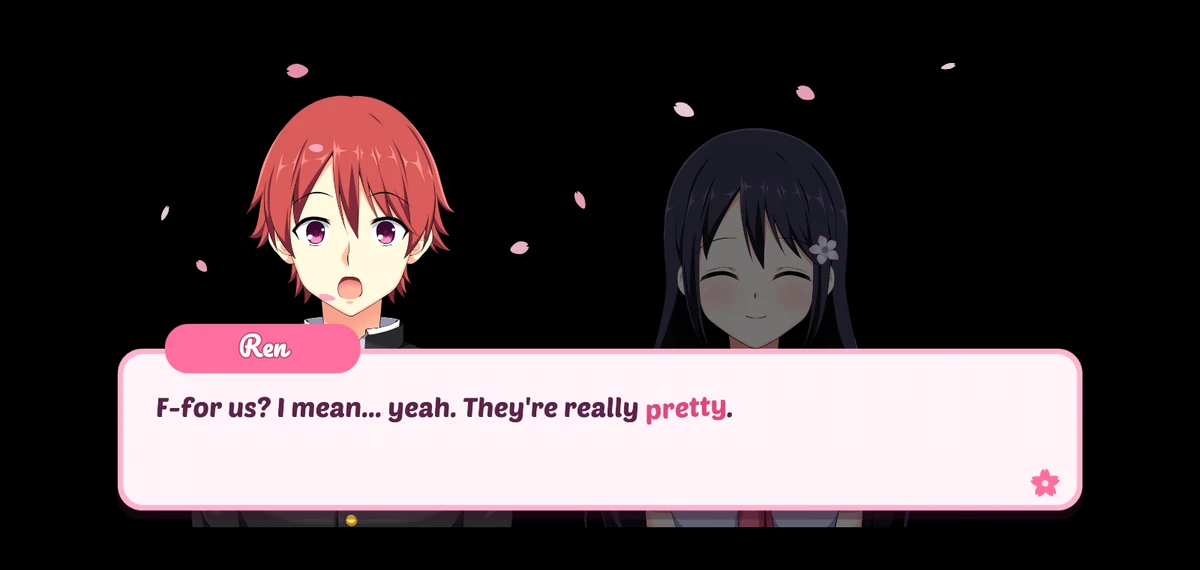
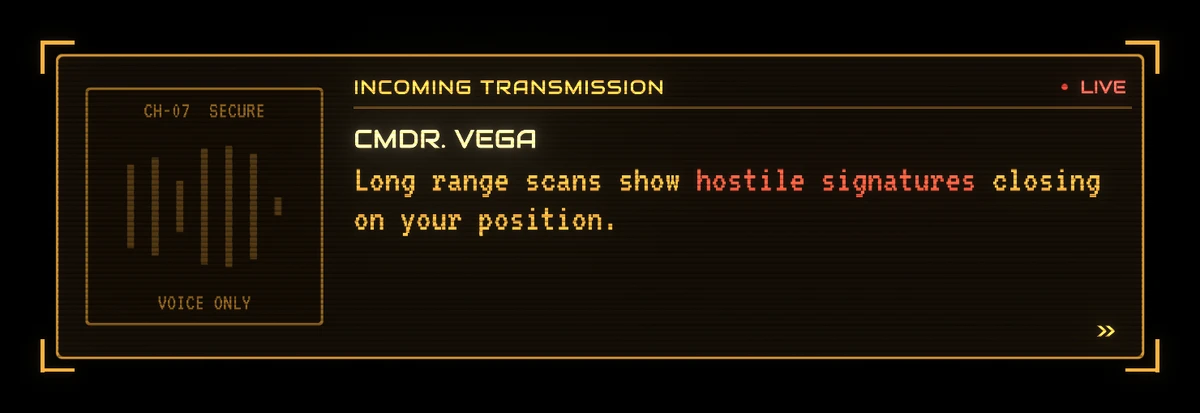
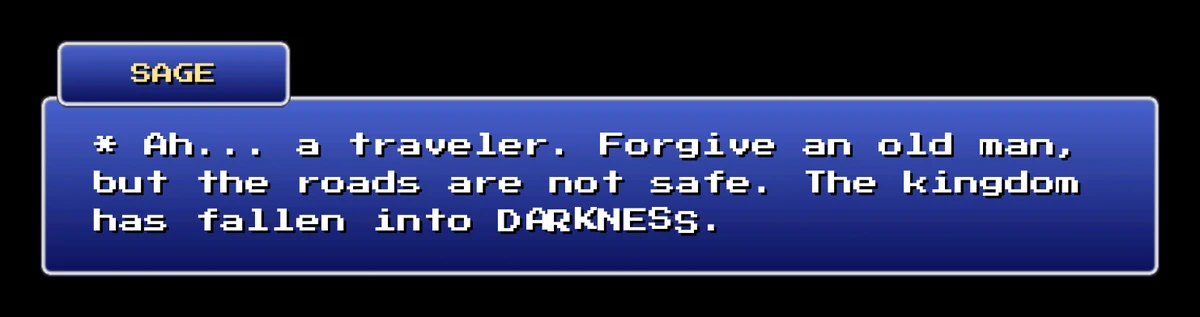
It works on the letters themselves, so it combines with every material effect, with text on a spline and with the warp. The demo’s three dialogue showcases are built on it:
Adding it
Section titled “Adding it”Select the text and press Add Typewriter on its All In 1 Text Shader component. It is also in Add Component under AllIn1TextShader → Typewriter.
On Start
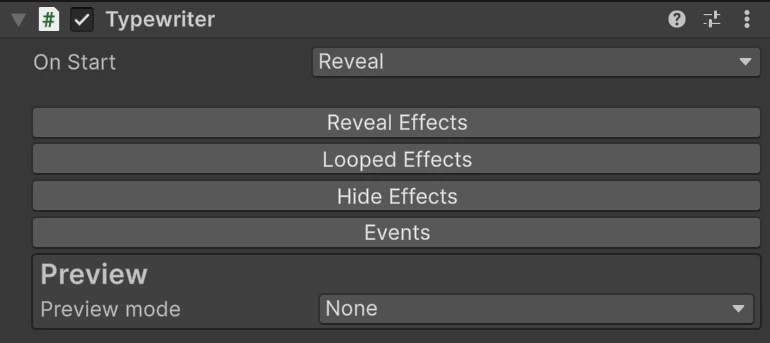
Section titled “On Start”What the typewriter does when the scene starts:
| Option | What happens |
|---|---|
| Reveal | Plays the reveal from the start, with the loops running alongside. The default |
| Show Immediately | The text appears already revealed and the loops start at once. The way to have loops with no visible reveal |
| Nothing | Waits until your code calls Play(), Reveal(), RevealImmediate() or Hide() |
Loops only run while the typewriter plays, so with Nothing they wait too.
Reveal, loop and hide
Section titled “Reveal, loop and hide”The inspector has three sections, each holding one preset:
- Reveal Effects play once, as the text appears.
- Looped Effects repeat for as long as the text is shown, during the reveal too.
- Hide Effects play once, as the text goes away.

Presets
Section titled “Presets”A preset is a saved animation you can reuse on any number of texts. Pick one from the dropdown. The built in ones (Default for the reveal, and None in each section) are read only; to change one, press +, which makes an editable copy of the selected preset and selects it. - deletes the selected preset after asking. Texts that used it switch to the first preset in the list the next time you open their inspector.
New presets are saved in the toolkit’s own folder, under AllIn1TextShader/Config/.
A preset’s settings
Section titled “A preset’s settings”| Setting | What it does |
|---|---|
| Config Name | The name shown in the dropdown |
| Group Type | Per Character animates each letter on its own, Per Word each word as one piece. Per Tags, for loops only, animates the parts of the text marked with tags |
| Traversal Order | The order letters or words start in: Left to Right, Right to Left, Center Outward or Outside In |
| Characters per second | How fast the reveal or hide moves through the text, from 1 to 200. Shown as Words per second with Per Word |
| Effects | Tick the effects to use. Each has its own Ease Function and settings |


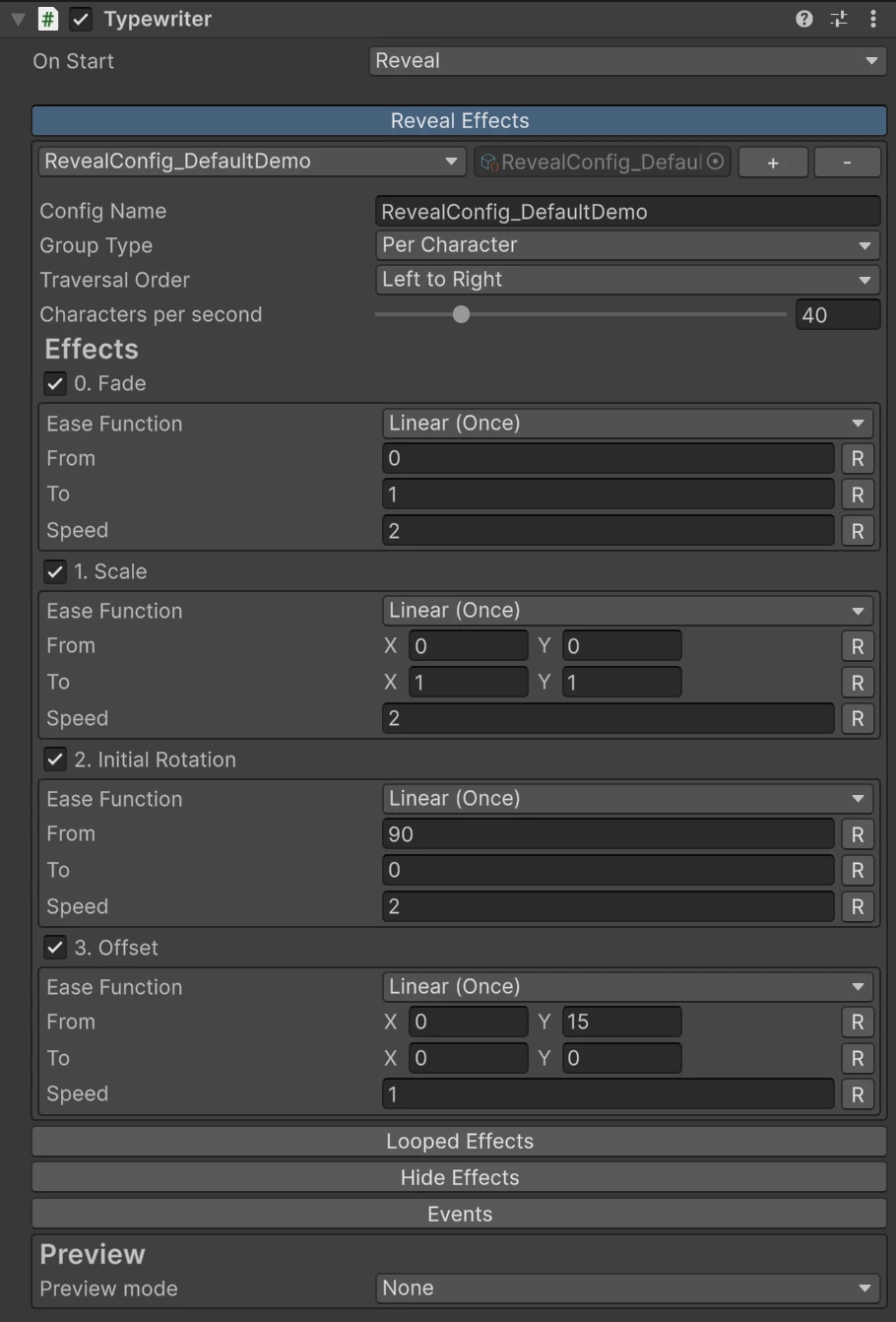
The speed above is how quickly one letter starts after another. Each effect’s own Speed is how long that letter’s animation takes. So a fast typewriter with a slow Fade has many letters fading in at once.
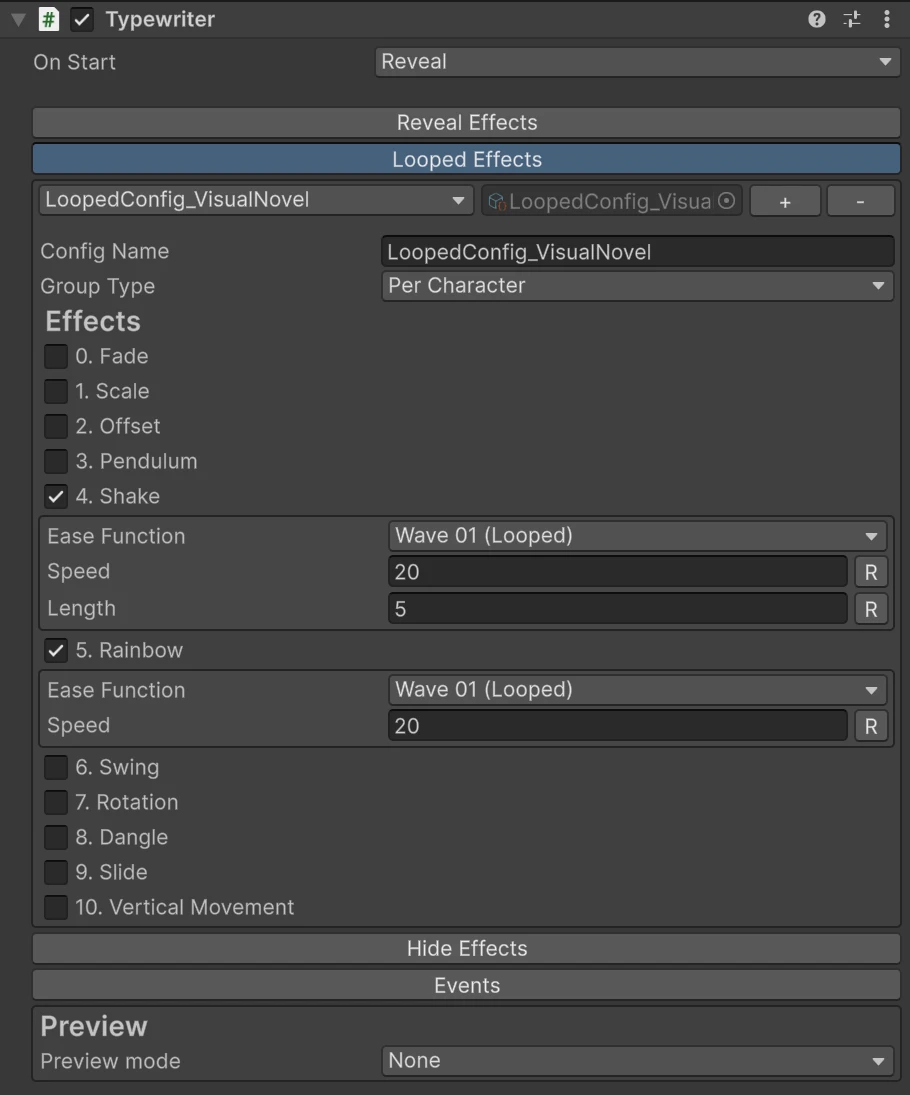
Looped presets have no order and no speed: every letter loops at the same time, each starting at its own random point in the cycle.
The hide
Section titled “The hide”Use Reveal As Hide Config, on by default, builds the hide from the reveal played backwards: the order is reversed, every effect runs from its To value back to its From value, and its ease is mirrored, so each letter retraces its entrance exactly. A pop in becomes a wind up and shrink away.
Turn it off to pick a separate hide preset. A hide always plays once; it cannot loop.
Reveal and hide effects pick from ten eases: Linear, Ease Out, Ease In, Ease In Out, Back Out (overshoots, then settles), Back In (winds up first), Elastic Out (springs past and rings down), Bounce Out, Steps (four hard steps) and Flicker (blinks on like a tube light). They show in the dropdown with “(Once)” after the name.

Looped effects pick from Linear, Bounce 01 and Wave 01, shown with “(Looped)”. All three go out and back, so each cycle ends where it started.
Previewing in the editor

Section titled “Previewing in the editor”The Preview box at the bottom plays the typewriter without entering play mode. Preview mode picks what to see: Reveal and Hide add a slider that scrubs through the reveal or the hide, and Looped plays the loops. Set it back to None when you are done.
The scrub shows the order and the shape of the effects; each effect’s own Speed only shows in play mode. While a preview is on, the text cannot be edited.
Events
Section titled “Events”The Events section raises UnityEvents you can wire in the inspector, like a button’s On Click. They fire in play mode.
| Event | Fires when |
|---|---|
| On Reveal Started | A reveal begins: Reveal(), Show Immediately, Play() on a text not yet revealed, or a reveal timed by the spline |
| On Character Reveal Started | Each letter as its reveal starts, the right moment for a typing sound. It passes the character and its index in the text |
| On Reveal Completed | Every letter has finished every reveal effect. Not fired when a hide interrupts the reveal |
| On Hide Started | A hide begins: Hide(), HideImmediate(), or a hide timed by the spline |
| On Hide Completed | Every letter has finished every hide effect. Not fired when a reveal interrupts the hide |
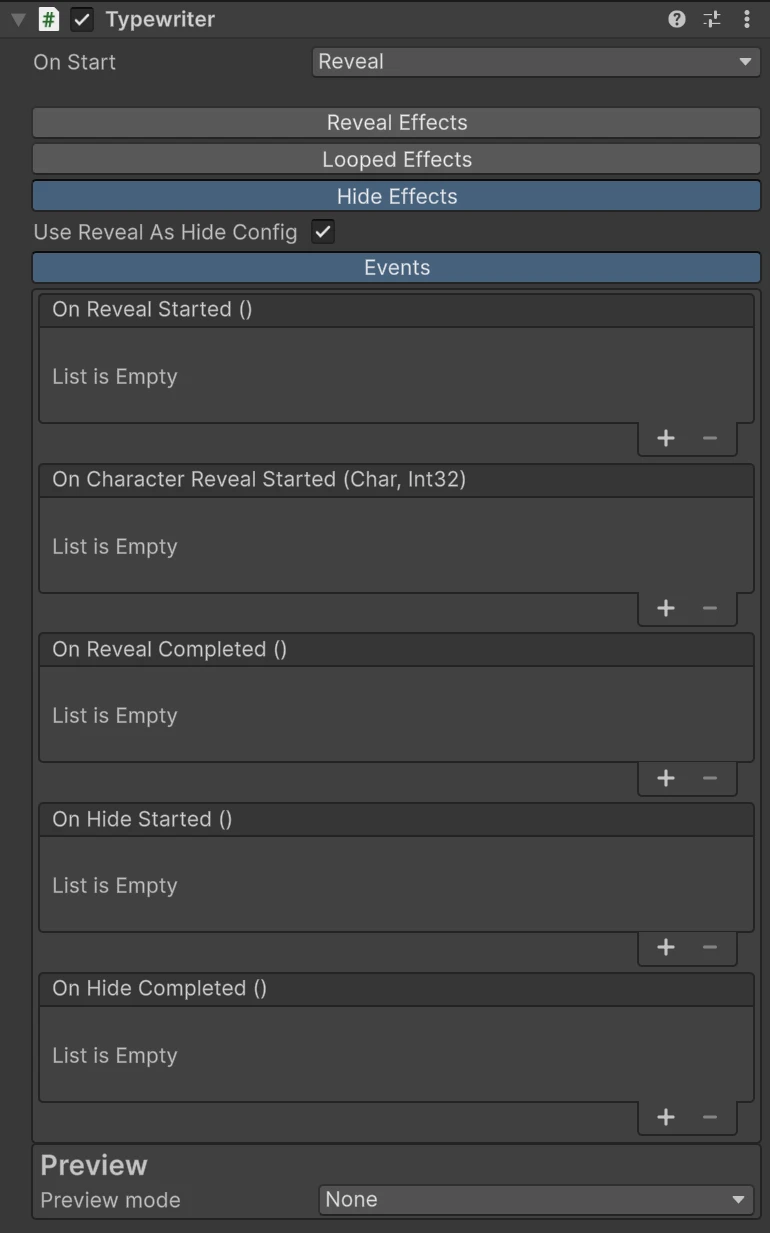
On Character Reveal Started fires once per word with Per Word. It does not fire for spaces, which suits typing sounds, nor for Show Immediately or a reveal timed by the spline.
Each event also exists for code, as OnRevealStarted, OnCharacterRevealStarted,
OnRevealCompleted, OnHideStarted and OnHideCompleted:
using AllIn1Assets.AllIn1TextShader;using UnityEngine;
public class DialogueLine : MonoBehaviour{    [SerializeField] private AllIn1TextTypewriter typewriter;    [SerializeField] private AudioSource typingSound;
    private void OnEnable()    {        typewriter.OnCharacterRevealStarted += OnLetter;        typewriter.OnRevealCompleted += OnLineDone;    }
    private void OnDisable()    {        typewriter.OnCharacterRevealStarted -= OnLetter;        typewriter.OnRevealCompleted -= OnLineDone;    }
    private void OnLetter(char character, int index)    {        typingSound.Play();    }
    private void OnLineDone()    {        Debug.Log("Line finished, show the next button");    }}
A listener can call Reveal(), Hide() or SetText() on the same typewriter safely: the
events fire after the frame’s update, so the next line starts cleanly.
From code
Section titled “From code”The calls you will use most:
| Call | What it does |
|---|---|
SetText(string) | Changes the text, tags included, and restarts the reveal |
Reveal() | Plays the reveal from the start |
RevealImmediate() | Shows the whole text at once, loops running |
Hide() | Plays the hide |
Pause(), Resume() | Freeze and continue |
IsRevealed(), IsHidden() | Whether the reveal or the hide has finished |
Change the text with SetText() rather than through the TextMeshPro component, so tags
are read and the letters are regrouped. The full list is in
Scripting.
Good to know
Section titled “Good to know”- It follows
Time.timeScale, so it pauses with the game. - Characters from another font asset (a fallback font, a bold typeface, a
<sprite>) do not take part: they show from the first frame and are not hidden. The text’s component warns when it has any. See Troubleshooting. - Material effects keep running on letters as they reveal, so a glow or a shine is already there as each letter arrives.