
First Steps (Must Read)
From a plain text to an outlined, animated one in a few minutes. Read this before the rest: it covers how materials are made and saved, which is where most first questions come from.
1. Make a text
Section titled “1. Make a text”GameObject → UI → All In 1 Text, also in the Hierarchy’s right click menu, creates a TextMeshPro - Text (UI) with everything set up, and a canvas if there is none.
To use an existing text instead, UI or 3D, select it and add the All In 1 Text Shader component: Add Component → AllIn1TextShader → AddAllIn1TextShader.
Either way, when its inspector shows, the text switches to a new material of its own with the toolkit’s shader. The new material keeps the face color and other values your old TextMeshPro material had.
2. Check the font
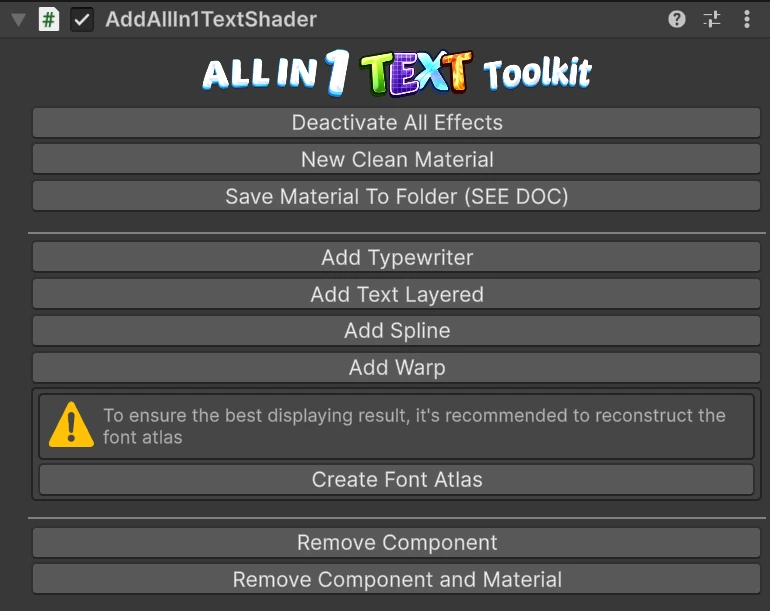
Section titled “2. Check the font”The component’s inspector checks the text’s font asset. If it says To ensure the best displaying result, it’s recommended to reconstruct the font atlas, press Create Font Atlas: it makes a font asset set up for the toolkit’s effects and switches the text to it. Fonts and Font Assets explains why, and what to do for characters beyond basic English.
3. Add an effect
Section titled “3. Add an effect”The material is edited where TextMeshPro shows it, at the bottom of the text’s inspector. Its effects are grouped into Lighting, Color Effects, Alpha Effects, Mesh Effects and UV Effects. Tick 14. Outline, raise its Outline Thickness, then try 13. Outer Glow or 1. Bevel. Every effect is described in Effects and Properties.
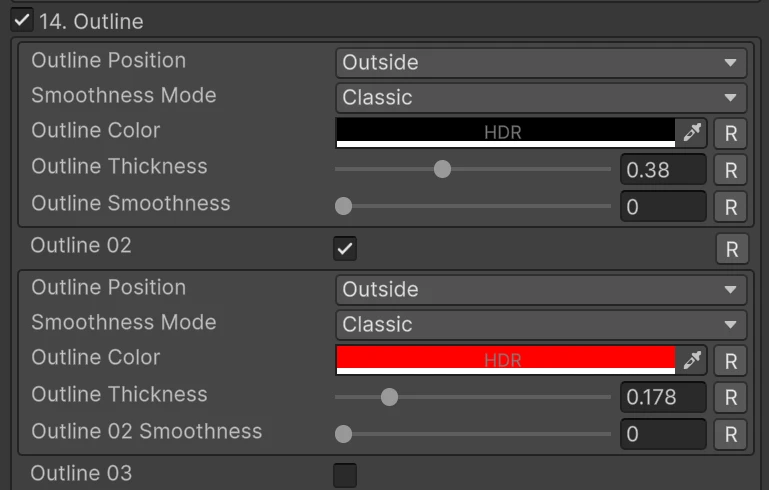
Most properties have an R button that resets them to their default.
The preview at the bottom of the inspector shows the material on a sample text, and animates while the mouse is over it.
4. Make it move
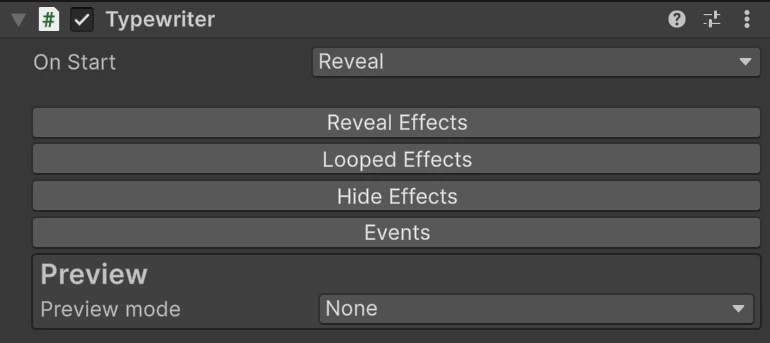
Section titled “4. Make it move”Press Add Typewriter on the All In 1 Text Shader component and enter play mode: the text reveals letter by letter with the Default preset. Open Looped Effects, press + and tick Vertical Movement for a bounce that runs while the text is shown. The Typewriter page has the rest.
The component’s buttons
Section titled “The component’s buttons”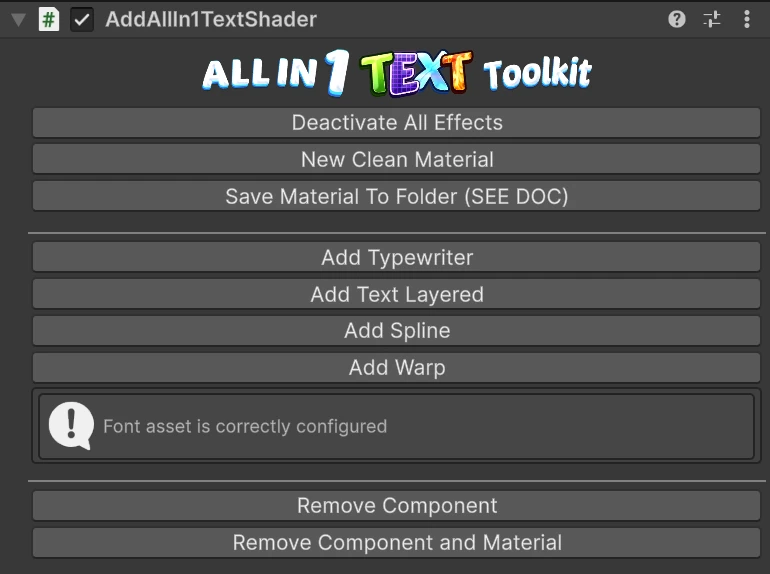
| Button | What it does |
|---|---|
| Deactivate All Effects | Turns every effect off on the text’s material, keeping their values. It also saves the project and the open scenes |
| New Clean Material | Gives the text a new material with every effect off. The values are kept, so an effect you turn back on returns as you had it |
| Save Material To Folder (SEE DOC) | Saves the text’s material as an asset, see below |
| Add Typewriter | Reveal, loop and hide animations, see Typewriter |
| Add Text Layered | Extra copies of the text with their own material, see Text Layers |
| Add Spline | Lays the text along a curve, see Text on a Spline |
| Add Warp | Bends the text into a shape, see Warp |
| Create Font Atlas | Shown when the font check fails, see above |
| Remove Component | Takes the toolkit off the text and keeps its material |
| Remove Component and Material | Takes it off and puts the text back on a plain TextMeshPro material |
The Add buttons turn into Remove buttons once the part is added. A Remove cannot be undone, so keep a copy of a spline or warp you spent time shaping.
Materials: one per text, saved when it matters
Section titled “Materials: one per text, saved when it matters”Each text has its own material, because the material also carries data about that one text. The toolkit looks after this for you:
- The material made when you add the component lives inside the scene, not in your project files.
- Duplicating a text (Ctrl+D) gives the copy a material of its own.
- In play mode, texts that share one material asset each get their own copy of it automatically. So a pool of damage numbers spawned from one prefab just works.
In the editor, though, two texts that share one material can show each other’s layout. Give each its own.
Save Material To Folder
Section titled “Save Material To Folder”Saves the text’s material as an asset in the project, by default in
Assets/AllIn1Exports/AllIn1TextShader/Materials, and the text keeps using it. If the
material is already an asset, it saves a copy instead. The folder is set in the Text
Shader Window’s Save Paths tab.
Save the material:
- Before making a prefab. A prefab cannot keep a material that lives in a scene.
- To reuse a look. Assign a copy of the saved material to another text.
Where to go next
Section titled “Where to go next”- Open the Demo Scene: 38 showcases, each made only with the toolkit, and every material in them is there to inspect.
- If you use URP, or build for mobile or the web, check Setup and Render Pipelines.