
Bevel, Extrude and Lighting
The two effects that make flat text look solid. Bevel raises each letter’s edge and lights it, Extrude gives the letters depth with lit side walls. Both are in the material’s Lighting group, and both can take their light from one object in the scene, so every title in a game shares the same light.
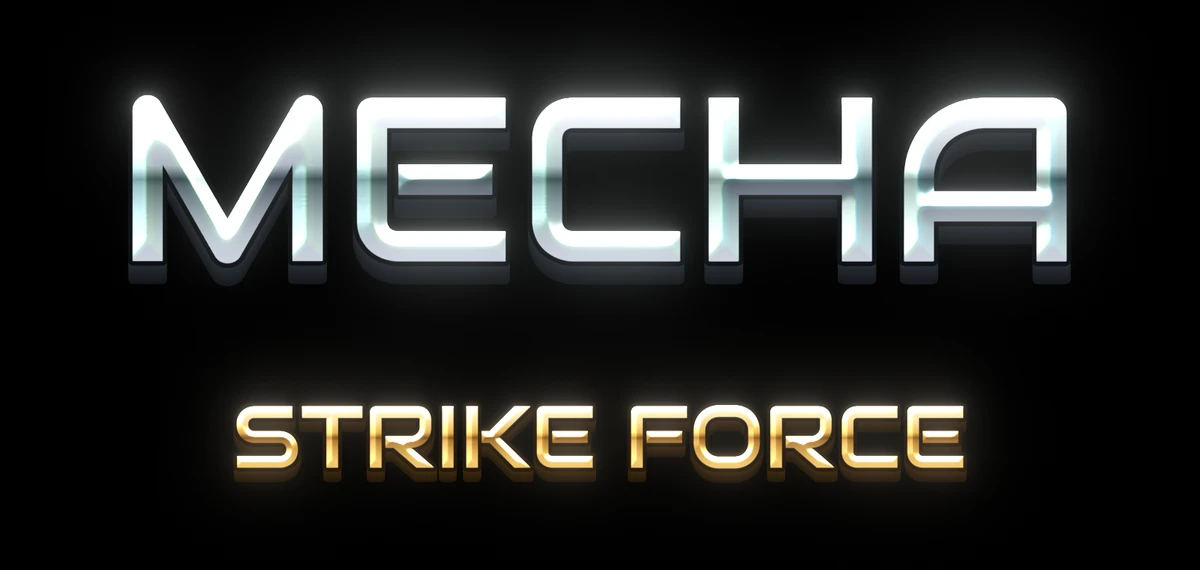

| Property | What it does |
|---|---|
| Bevel Style | Classic lights one side of each stroke and shades the other. Symmetric lights both sides of every stroke the same way, for an embossed look with no shadow side |
| Bevel Size | How smooth the relief is. Higher values average a wider area, for rounder and softer bevels |
How wide the bevel is comes from the font asset, not from Bevel Size: the relief covers the font’s padding, the band around each letter its atlas stores. A font asset with more padding gives a wider bevel. See Fonts and Font Assets.
| Property | What it does |
|---|---|
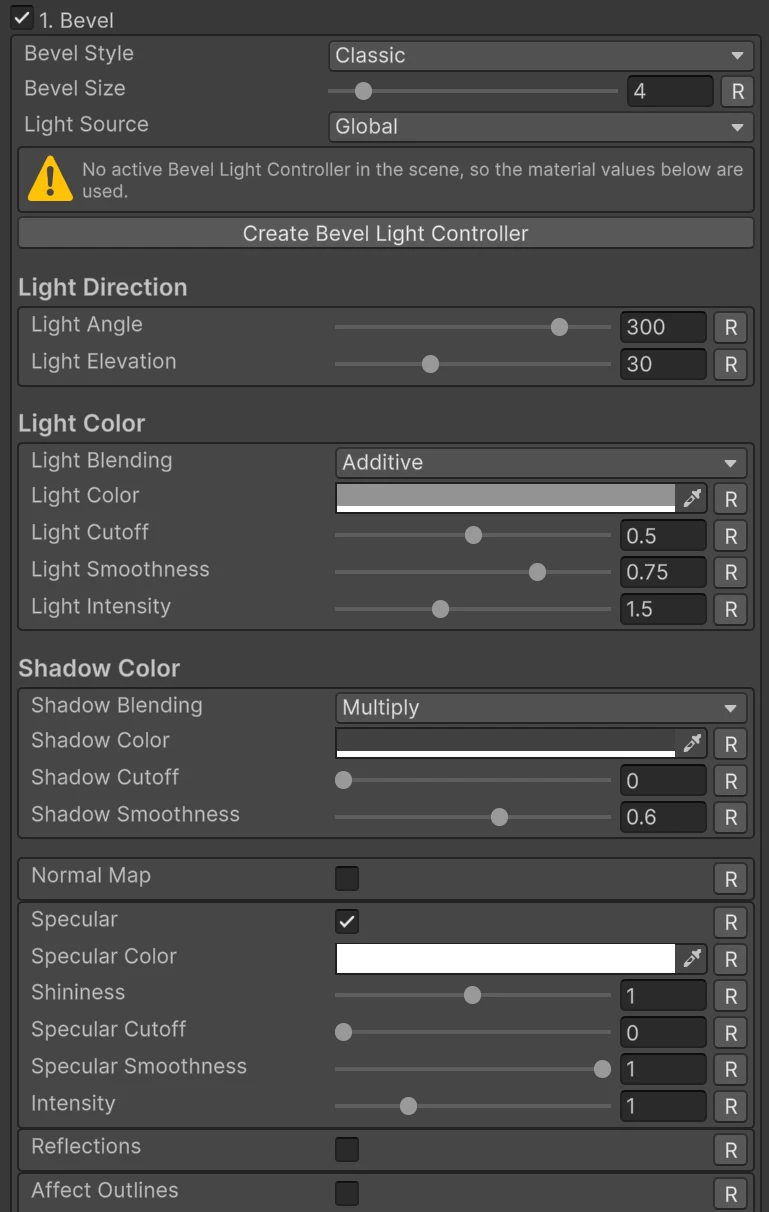
| Light Source | Material uses the values below. Global takes them from the scene’s Bevel Light Controller |
| Light Angle | Where the light comes from, in degrees around the text |
| Light Elevation | How high the light is. At 0 it skims the text and the far edges are fully dark. At 90 it shines straight at the text and every edge is lit, with no shadow |
The light is set in the text’s own frame. A letter turned by a spline, a warp or a motion effect keeps the text’s light instead of turning its light with it.
Under Light Color, the lit edges:
| Property | What it does |
|---|---|
| Light Blending | How the light color is applied: Multiply, Additive or Replace |
| Light Color | The light’s color. Its alpha scales the light |
| Light Cutoff | Where the lit band starts |
| Light Smoothness | 1 is a soft falloff, near 0 a hard edge, for a toon look |
| Light Intensity | Multiplies Light Color |
Under Shadow Color, the edges facing away, with the same Blending, Color, Cutoff and Smoothness.
Normal Map, Specular and Reflections
Section titled “Normal Map, Specular and Reflections”Three toggles under the light add surface detail. They only work on the bevel itself: the flat middle of each letter never takes a highlight.
| Property | What it does |
|---|---|
| Normal Map | A normal map that adds texture to the bevel, such as scratches or hammered metal |
| Face Atten | How much of it shows on the letters |
| Outline Atten | How much of it shows on the outlines. Shown with Affect Outlines on |
| Specular | A highlight where the bevel catches the light |
| Specular Color | The highlight’s color |
| Shininess | Higher is a smaller, tighter highlight |
| Specular Cutoff, Specular Smoothness | Shape the highlight. Smoothness 1 is soft, near 0 gives hard toon spots |
| Intensity | The highlight’s strength |
| Reflections | A cubemap reflected in the bevel, for chrome and metal |
| Reflections Map | The cubemap |
| Attenuation | How strong the reflection is |
Straight strokes sit at one slope, so a highlight runs along their whole length. Separate glints form on curves, where the edge turns through the light.
Affect Outlines
Section titled “Affect Outlines”Off by default: the bevel stays on the letters and the outlines keep their flat color. On, the outlines get the bevel too, and letter and outline read as one continuous bevel.
Very wide outlines go flat in places with Affect Outlines on, on round parts and inside closed letters like O. That happens once Face Dilate plus the outline’s thickness passes about 1, the edge of what the font atlas stores.
Extrude
Section titled “Extrude”
| Property | What it does |
|---|---|
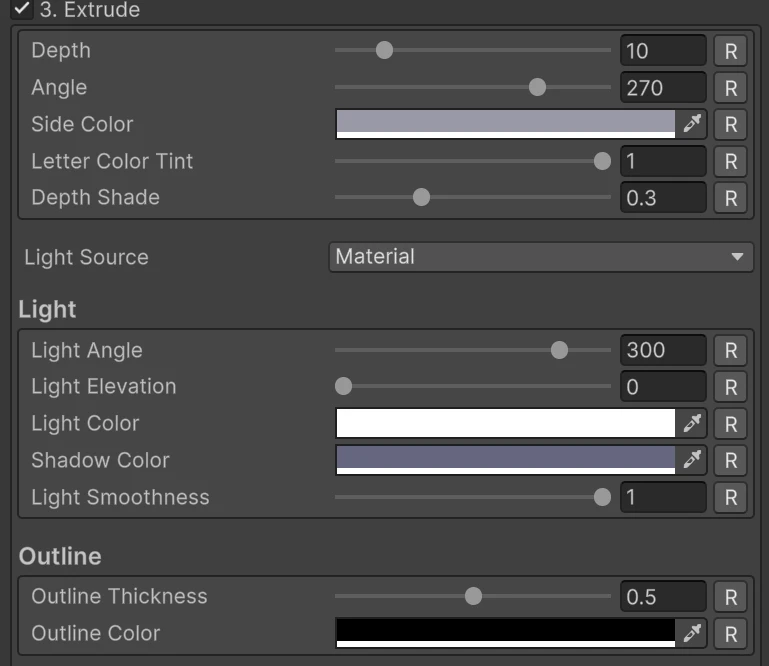
| Depth | How deep the letters are, in font atlas pixels, so it scales with the letter |
| Angle | Which way the depth goes, in degrees. 270 is straight down |
| Side Color | The color of the side walls |
| Letter Color Tint | How much the sides take the letter’s own color. At 1, color tags and the typewriter’s Rainbow carry onto the sides |
| Depth Shade | Darkens the sides toward the back |
Like the bevel’s light, the angle is set in the text’s frame, so every letter extrudes the same way even when a spline or a warp turns them.
An outside outline extrudes with its letter: the depth is cut from the letter plus its outlines.
| Property | What it does |
|---|---|
| Light Source | Material or Global, as for the bevel |
| Light Angle, Light Elevation | The light’s direction, as for the bevel |
| Light Color | The sides facing the light |
| Shadow Color | The sides facing away |
| Light Smoothness | 1 blends the two across the walls, near 0 splits them hard for a toon look |
The side walls stand at right angles to the letters, so a light at elevation 90, shining straight at the text, leaves every wall halfway between Shadow Color and Light Color.
Outline
Section titled “Outline”| Property | What it does |
|---|---|
| Outline Thickness | Draws an outline around the letter and its sides together |
| Outline Color | Its color |
The section ends with a note when the outline reaches past the font’s padding, see Fonts and Font Assets.
Why the sides never cover a letter
Section titled “Why the sides never cover a letter”Deep extrusions reach into the next letter, and with text on a curve or a diagonal angle there is no drawing order that puts every side behind every letter. So while a material on the text has Extrude on, each letter gets a second copy that draws the sides and the drop shadows first, and the letters are drawn after all of them. It stays one draw call, but the text has twice the vertices. A text so long that its copies would pass TextMeshPro’s limit of 16383 quads gets no copies, and then draws no extrusion and no shadows.
This works within one text. Two separate texts close enough for their sides to reach into each other can still draw in the wrong order, see Troubleshooting.
One light for every text
Section titled “One light for every text”The Bevel Light Controller lights every bevel and extrusion whose Light Source is Global, in every open scene. Change its angle and every title turns its light together.
To add one, set a material’s Light Source to Global and press Create Bevel Light
Controller under it. That makes a Bevel Light Controller object in the open scene and
selects it. Once there is one, the material shows Select Bevel Light Controller
instead, and hides the values the controller now drives.
| Section | Properties |
|---|---|
| Light Direction (Bevel and Extrude) | Light Angle, Light Elevation |
| Light Color | Light Blending, Light Color, Light Cutoff, Light Smoothness, Light Intensity |
| Shadow Color | Shadow Blending, Shadow Color, Shadow Cutoff, Shadow Smoothness |
| Extrude | Extrude Light Color, Extrude Shadow Color, Extrude Light Smoothness |
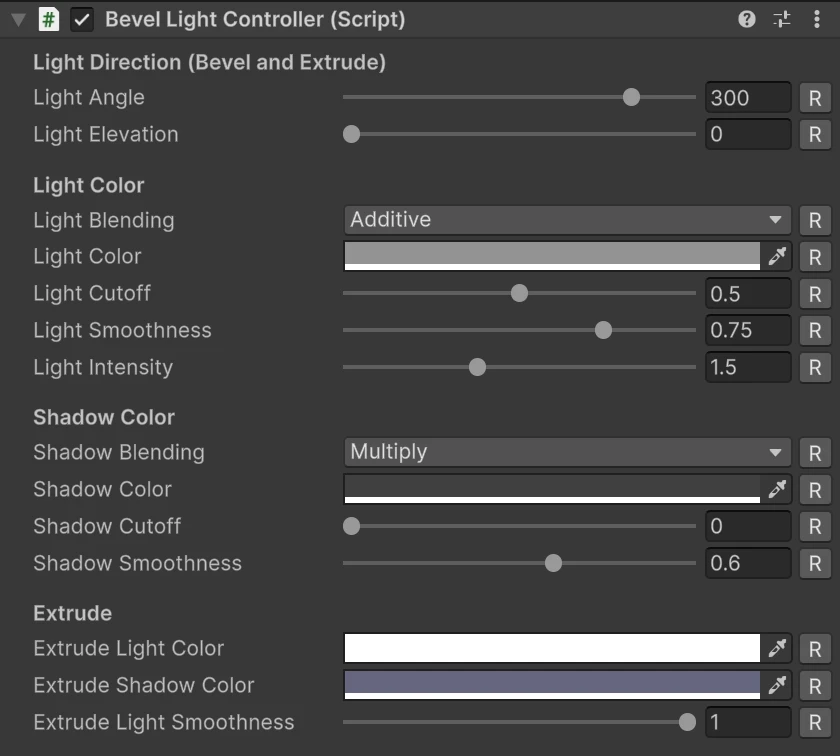
They work like the material properties of the same names, and each has an R button that resets it to its default. The defaults match a new material’s, so switching a material to Global on a fresh controller keeps its look.
What stays on the material in Global mode: for the bevel, Bevel Style, Bevel Size and the Normal Map, Specular, Reflections and Affect Outlines toggles (Specular uses the controller’s direction with its own color and shape); for Extrude, the shape, the side color and the outline.
- One at a time. The shader reads a single light: with several controllers enabled, the last one enabled or edited drives it, and the controller’s inspector warns that there are more.
- No controller, no problem. A Global material with no enabled controller falls back to its own values, and its inspector says so.
- It animates. The controller sends its values every frame, so an Animator or a script can move the light at runtime: a light sweeping across every title at once.