
Curved Text and Text on a Path in Unity TextMeshPro
TextMeshPro has no setting to curve text, but every letter it draws is a small quad whose four corners a script can move. So text bends along an arc, a circle or any path by moving each letter to its place on the curve and turning it to match the curve there.
How curved text works
Section titled “How curved text works”TextMeshPro lays the text out flat first. After that, everything a script needs is in the text’s textInfo:
characterInfohas one entry per character: where its four corners start in the mesh (vertexIndex), which mesh they are in (materialReferenceIndex), its line’s baseline, and whether it is drawn at all (isVisible, false for spaces).meshInfo[...].verticesholds the corners themselves.
For each visible letter, take its middle on the baseline, find the point on the curve that lies the same distance along it, move the four corners there and turn them by the curve’s angle at that point. Then hand the moved corners back with UpdateVertexData. On an arc the distance along it is simple: the angle is the distance divided by the radius. On any other curve the script has to measure the curve’s length first, or letters bunch up where it bends tightly.
TextMeshPro rebuilds its mesh flat whenever the text, the font or the size changes, so the bend has to be applied again after every rebuild. Its TEXT_CHANGED_EVENT says when.
Curving TextMeshPro text with a script
Section titled “Curving TextMeshPro text with a script”This bends a text into an arc, and into a circle as the radius gets small. Add it to the text’s GameObject, drag the TextMeshPro component into Text, and set Radius: in pixels for UI text, in units for a 3D text.
using TMPro;using UnityEngine;
[ExecuteAlways]public class CurvedText : MonoBehaviour{    [SerializeField] private TMP_Text text;    // In the text's own units: pixels for UI text. Smaller bends more    [SerializeField] private float radius = 300f;
    private bool bending;    private bool dirty;
    public float Radius    {        get => radius;        set { radius = value; Bend(); }    }
    private void OnEnable()    {        TMPro_EventManager.TEXT_CHANGED_EVENT.Add(OnTextChanged);        Bend();    }
    private void OnDisable()    {        TMPro_EventManager.TEXT_CHANGED_EVENT.Remove(OnTextChanged);        if (text != null) text.ForceMeshUpdate();    }
    // A change in the inspector bends on the next update: TextMeshPro should not rebuild its mesh from OnValidate    private void OnValidate() => dirty = true;
    private void Update()    {        if (!dirty) return;        dirty = false;        Bend();    }
    // TextMeshPro rebuilds its mesh flat whenever the text, font or size changes, so bend it again each time    private void OnTextChanged(Object changed)    {        if (changed == text) Bend();    }
    private void Bend()    {        // ForceMeshUpdate raises the text changed event itself, which would call this again        if (bending || text == null || !isActiveAndEnabled) return;        bending = true;
        text.ForceMeshUpdate();        TMP_TextInfo info = text.textInfo;
        for (int i = 0; i < info.characterCount; i++)        {            TMP_CharacterInfo character = info.characterInfo[i];            if (!character.isVisible) continue;
            Vector3[] vertices = info.meshInfo[character.materialReferenceIndex].vertices;            int v = character.vertexIndex;
            // The letter's middle on its baseline, and where that point lands on a circle centred below the text            Vector3 middle = new Vector3((vertices[v].x + vertices[v + 2].x) * 0.5f, character.baseLine, 0f);            float angle = middle.x / radius;            float r = radius + character.baseLine;            Vector3 onCurve = new Vector3(Mathf.Sin(angle) * r, Mathf.Cos(angle) * r - radius, 0f);            Quaternion turn = Quaternion.Euler(0f, 0f, -angle * Mathf.Rad2Deg);
            // Move the letter's four corners there, turned to follow the curve            for (int k = 0; k < 4; k++)                vertices[v + k] = onCurve + turn * (vertices[v + k] - middle);        }
        text.UpdateVertexData(TMP_VertexDataUpdateFlags.Vertices);        bending = false;    }}
What you will run into:
- Only an arc. A wave, an S or a path you draw needs the curve’s length measured and a position and angle looked up for every letter.
- Spacing on tight curves. Each letter keeps its flat spacing along the baseline, so on a small radius the letters’ tops fan apart and their bottoms crowd.
- Other scripts that move letters. Anything else that edits the same vertices, a wobble or a typing animation, has to run in the right order with this, or one undoes the other.
- Clicks and links still use the flat layout, so
TMP_TextUtilitiesfinds letters where they would be unbent.
With All In 1 Text Toolkit
Section titled “With All In 1 Text Toolkit”Don’t own it yet? → Get it on the Unity Asset Store
The toolkit bends text two ways, each a component you add from the text’s All In 1 Text Shader component. First Steps covers that component.
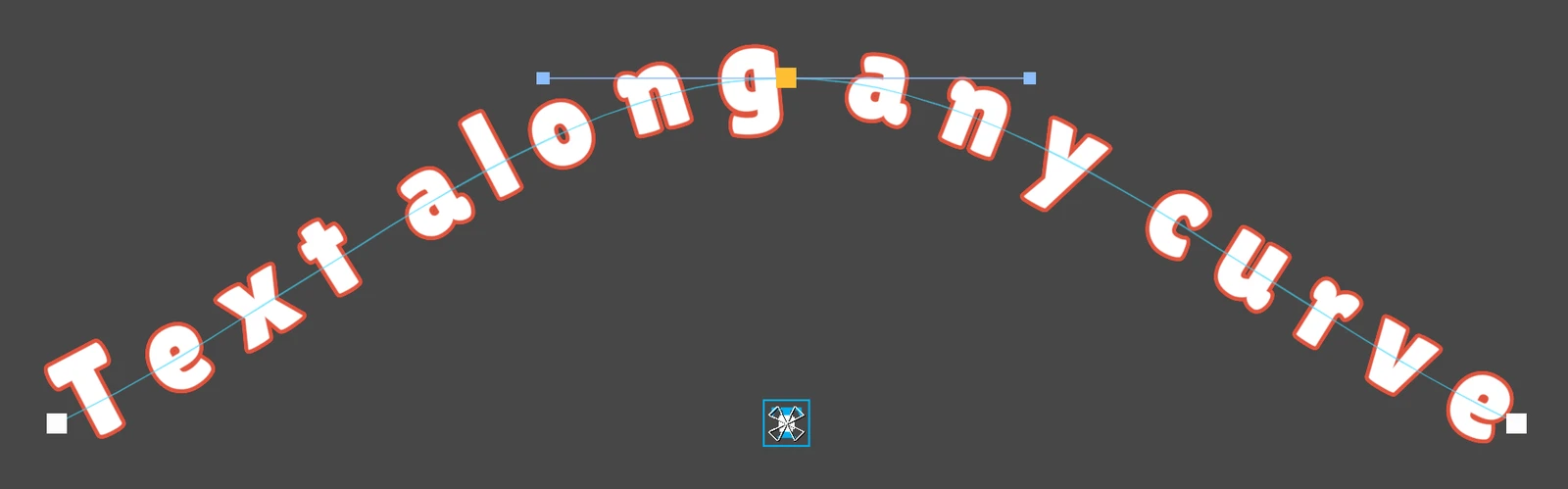
Text on a Spline places the letters along a curve you draw in the Scene view, points and handles like any spline editor, open or closed into a loop. Auto Fit spreads the text over the whole curve, Baseline Offset moves it to one side, Rotate With Curve turns the letters or keeps them upright, and a text with several lines stays stacked along the curve. It measures the curve’s length itself, and Curve Resolution refines that on tight bends. See Text on a Spline.
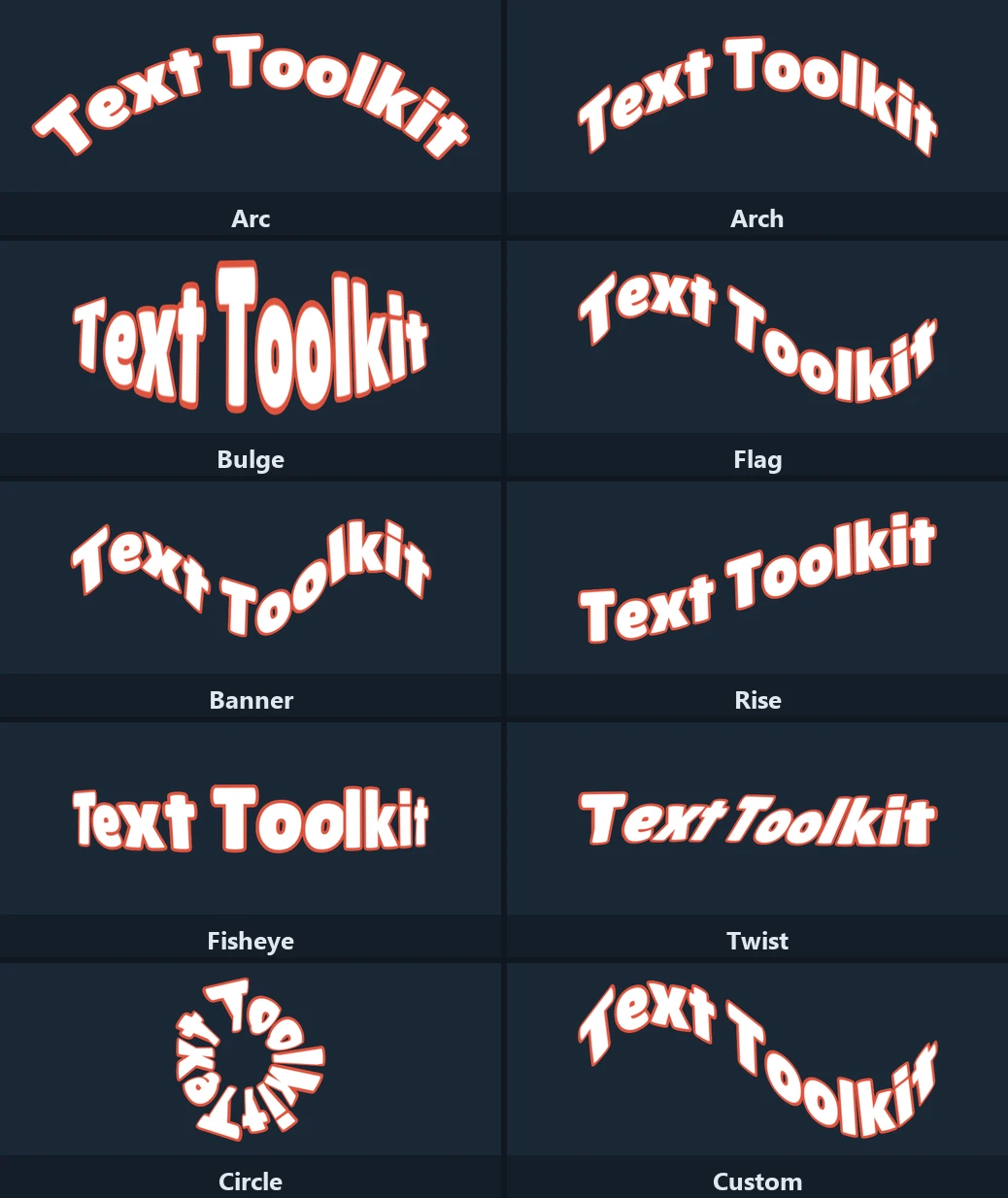
Warp bends the shape of the whole text instead, letters included, with Photoshop’s Warp Text styles: Arc, Arch, Bulge, Flag and the rest, a Banner that waves on its own, and Circle, which wraps the text around a circle and closes it at a Bend of 100. See Warp.
Use the spline to lay letters along a path, and the warp to give the word itself a shape. They also combine: the warp bends the curved text as one.
Animated curved text
Section titled “Animated curved text”- Scrolling. A spline’s Scroll Mode moves the text along the curve, back and forth or round and round, at Scroll Speed.
- Entering and leaving. With Enter Exit Enabled, letters show only inside a window of the curve, and fade, shrink or spin as they cross into it and out of it.
- Travelling in and out.
Show()brings the text in along its curve andHide()sends it out, letter by letter or as one block. - Everything else rides along. The typewriter’s reveals and loops move each letter in the curve’s own frame, and every material effect keeps its shape on bent text. The effects are listed in Motion Effects and Tags.
What it does not do
Section titled “What it does not do”- UI Toolkit text. The toolkit works on TextMeshPro text, in a Canvas or in the world.
- Letters from another font asset on a spline, such as a fallback font or a
<sprite>, are placed on the curve but skip the enter and exit effects. - Clicks and links use the flat layout, as with the script above.
- An even gap where a closed loop meets with Auto Fit on: it measures from the first letter to the last, so set Spacing by hand for an even loop.