
A Typewriter Effect in Unity TextMeshPro
For a typewriter effect in TextMeshPro, set the text once, set its maxVisibleCharacters to 0, and raise it one letter at a time. The whole text is laid out from the start, so lines never jump or rewrap as letters appear, and rich text tags are not counted as letters.
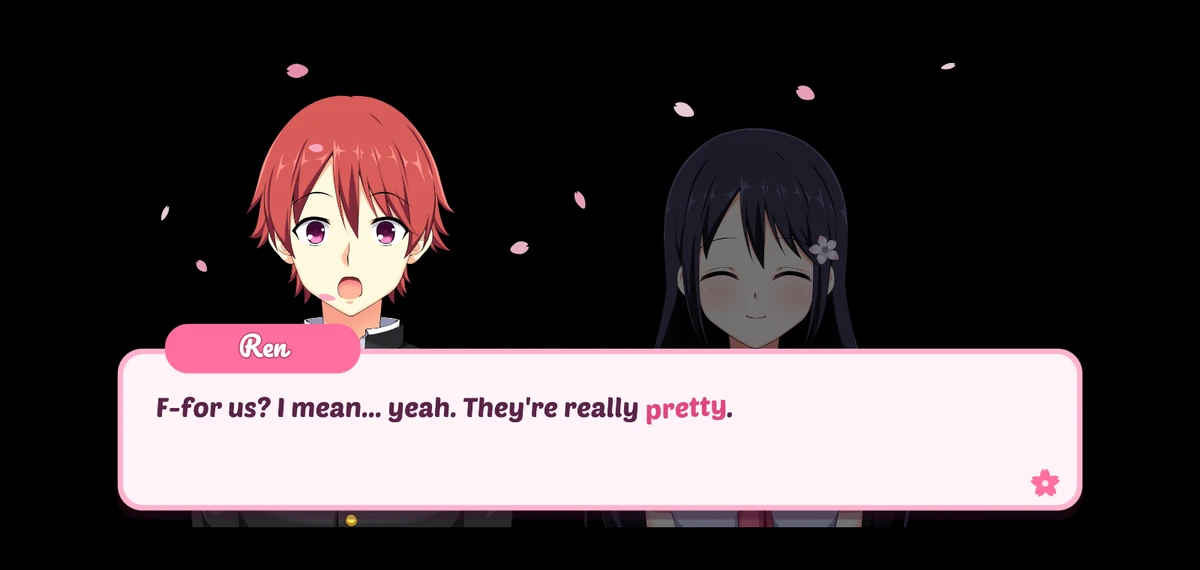
The simplest typewriter
Section titled “The simplest typewriter”Changing maxVisibleCharacters hides the letters past that count without touching the text. That beats the common alternative of adding one letter to the string each frame: rebuilding the string makes TextMeshPro lay the line out again every time, so a word jumps to the next line halfway through being typed, and a rich text tag shows up half written.
This script types a line at a set speed, waits a little longer after punctuation, plays a sound per letter, can skip to the end, and says when it is done. Put it next to the TextMeshPro component, drag that into Text, and call Play("your line").
using System.Collections;using TMPro;using UnityEngine;
public class SimpleTypewriter : MonoBehaviour{    [SerializeField] private TMP_Text text;    [SerializeField] private float charactersPerSecond = 30f;    [SerializeField] private float punctuationPause = 0.3f;    [SerializeField] private AudioSource typingSound;
    public event System.Action Finished;
    private Coroutine typing;
    public bool IsTyping => typing != null;
    public void Play(string line)    {        if (typing != null) StopCoroutine(typing);        text.text = line;        typing = StartCoroutine(Type());    }
    // Shows the whole line at once, for a click while it types    public void Skip()    {        if (typing == null) return;        StopCoroutine(typing);        typing = null;        text.maxVisibleCharacters = text.textInfo.characterCount;        Finished?.Invoke();    }
    private IEnumerator Type()    {        text.maxVisibleCharacters = 0;        // Lays the text out now: the whole line takes its final place, and rich text tags are not counted as characters        text.ForceMeshUpdate();        int total = text.textInfo.characterCount;
        for (int i = 0; i < total; i++)        {            text.maxVisibleCharacters = i + 1;            char c = text.textInfo.characterInfo[i].character;            if (typingSound != null && !char.IsWhiteSpace(c)) typingSound.Play();
            float wait = 1f / charactersPerSecond;            if (c == ',' || c == '.' || c == '!' || c == '?') wait += punctuationPause;            yield return new WaitForSeconds(wait);        }
        typing = null;        Finished?.Invoke();    }}
Skipping, pauses and sounds
Section titled “Skipping, pauses and sounds”- Skipping. A click while the line types should show it all, and the next click move on.
Skip()above does the first;IsTypingtells your input code which one a click means. - Pauses. A comma or a full stop reads better with a beat after it, here
punctuationPause. A pause written into the line itself, at any point, needs your own markup and code to read it out of the string before it reaches TextMeshPro. - Sounds. One sound per letter quickly turns into a buzz. Skipping spaces, as above, helps, and so does a sound every second or third letter, or a slight random pitch.
- Done.
Finishedis the moment to show a “next” arrow or start the next line.
What it costs: WaitForSeconds waits at least one frame, so the script never types faster than one letter per frame, and at very high speeds a timer that counts several letters per frame is better. And every letter simply pops in: a fade, a slide or a bounce per letter means moving each letter’s vertices yourself, every frame, as the curved text guide does for a curve.
With All In 1 Text Toolkit
Section titled “With All In 1 Text Toolkit”Don’t own it yet? → Get it on the Unity Asset Store
Press Add Typewriter on the text’s All In 1 Text Shader component. Each letter then plays an entrance as it appears, the text can keep moving while it is shown, and it can leave with an exit of its own:
- Reveal Effects play once as the text appears: fades, scales, turns and offsets, each with its own ease, letter by letter or word by word, left to right, from the centre outwards and more, at 1 to 200 Characters per second.
- Looped Effects keep running while the text is shown: shakes, swings, rainbows and the rest.
- Hide Effects play once as it goes away.

Each of these is a preset you can reuse on any number of texts. From code, SetText() changes the line and starts its reveal, RevealImmediate() is the skip, and Hide() plays the exit. The On Character Reveal Started event fires once per letter, but not for spaces, which is the moment for a typing sound, and On Reveal Completed says the line is done. See Typewriter, Motion Effects and Tags for the effects and the tags that animate parts of a line, and Scripting.
It works on the letters themselves, so the reveal combines with every material effect, with text on a spline and with the warp, and it follows Time.timeScale, pausing with the game.
What it does not do
Section titled “What it does not do”- A pause at punctuation, or anywhere in the line. The reveal moves at its Characters per second throughout. For a beat after a comma, call
Pause()from On Character Reveal Started andResume()after your delay.Pause()stops the text’s whole animation clock, not only the reveal, so check how it looks with the effects you use. - Letters from another font asset, such as a fallback font or a
<sprite>, do not take part: they show from the first frame. - UI Toolkit text. The typewriter works on TextMeshPro text, in a Canvas or in the world.